How to Improve IPTV Channel Switching Speed in 2026: Fix Slow Loading and Long Delays
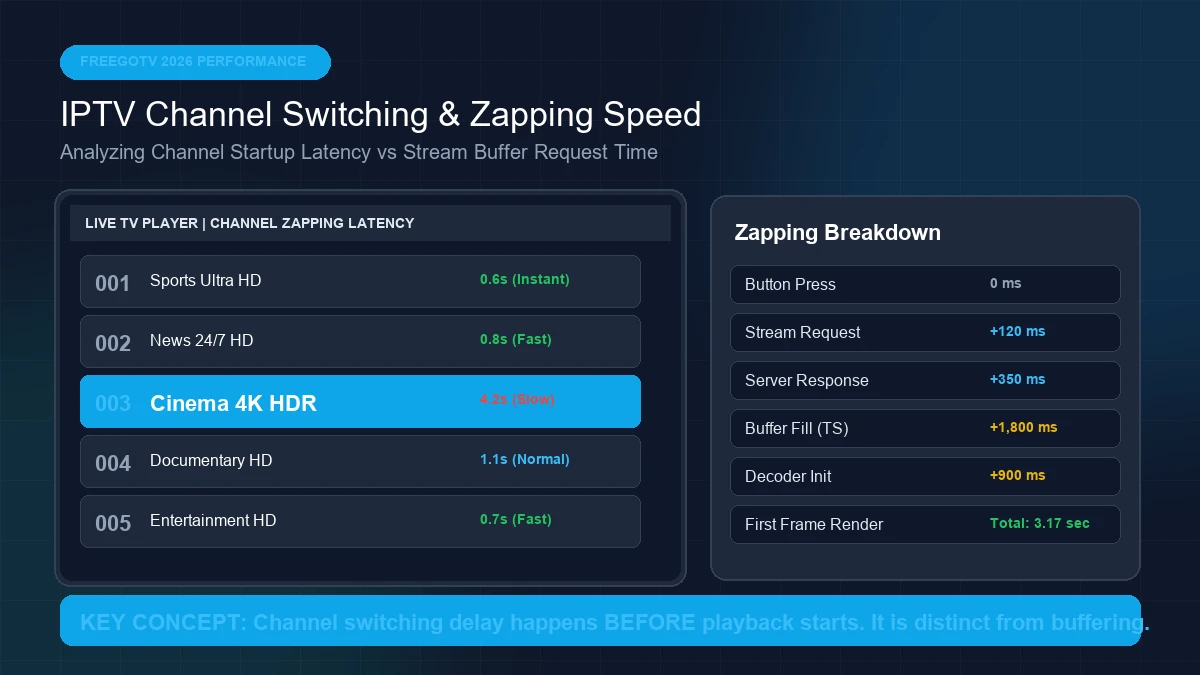
You settle down on your sofa to watch live sports or surf through news channels. You press the channel-up button on your remote control, expecting an instant change—but instead of a quick transition, your TV screen turns black. Three seconds pass. Then five seconds. Finally, after a frustrating seven-second wait, the stream initializes and the picture appears.
If you have ever experienced slow zapping or long channel loading delays on your streaming device, you are not alone. Channel switching speed—often referred to as zapping latency or channel startup delay—is one of the most noticeable metrics of IPTV performance.
Many viewers confuse slow channel switching with general streaming issues like IPTV 4K Buffering or total stream failure covered in our IPTV Not Working Guide. However, channel switching delay is a distinct technical issue that occurs specifically during the transition phase between stream request and initial frame rendering.
This comprehensive guide explains why IPTV channels can take long to load in 2026, breaks down the complete 9-step channel startup sequence, provides a 7-step diagnostic testing protocol, and delivers 12 practical solutions to optimize zapping speed across Smart TVs, Amazon Firestick, Android TV, and top IPTV players.
What Is IPTV Channel Switching Speed?
IPTV channel switching speed (also called zapping speed or channel startup latency) refers to the total elapsed time between the moment a user requests a new channel and the exact moment the television screen displays the first decoded, fluid video frame with synchronized audio.
Unlike traditional cable or satellite TV—where all channels are continuously delivered to your set-top box simultaneously over coaxial cables—IPTV operates on an on-demand unicast or multicast stream request model. When you select a new channel, your device must tear down the existing data connection and establish a completely new digital stream from the broadcaster's server.
The 9-Step Channel Startup Sequence
Every time you change channels on an IPTV application, your hardware and software complete a complex 9-step sequence behind the scenes:
- User Channel Selection: You press a remote button or tap a channel in the Electronic Program Guide (EPG).
- Stream Request Emission: The IPTV player app sends an HTTP/HLS or MPEG-TS request containing your authentication token to the streaming server.
- Server Handshake & Authorization: The server verifies your active subscription and responds with stream URL routing data.
- Network Connection Establishment: TCP/UDP network sockets connect your home router to the broadcast server.
- Initial Data Transfer: The broadcaster streams the first data packets (TS segments) across your ISP network.
- Player Stream Identification: The media player reads the incoming transport stream metadata and identifies video (H.264/HEVC) and audio (AAC/AC3) codecs.
- Hardware Decoder Initialization: The streaming device's GPU/VPU initializes the video decoder framework.
- Pre-Buffer Accumulation: The player collects enough data frames in memory to prevent immediate playback stuttering.
- First Frame Rendering & Playback: The video decoder outputs the first IDR/I-Frame (keyframe) to your TV screen and audio output begins.
+-----------------------------------------------------------------------------------+
|                            Channel Startup Sequence                               |
| Click Remote -> Send Request -> Server ACK -> Receive Data -> Init VPU -> First Frame |
+-----------------------------------------------------------------------------------+
Delays can occur at any single step in this sequence. There is no universal "standard" switching time across all setups; a high-end setup on an Ethernet connection may switch channels in 0.5 to 1.2 seconds, while a low-powered Wi-Fi device handling a 4K stream may require 3 to 6 seconds under normal conditions.
Why Are Some IPTV Channels Slow to Load?
Understanding the primary bottlenecks in the 9-step startup sequence helps isolate why your channels take several seconds to open:
Stream Startup Time & Keyframe Intervals
Before a video player can render a picture, it must receive an I-Frame (Keyframe)—a complete, uncompressed video frame. If a broadcast encoder places keyframes far apart (e.g., every 2 to 4 seconds), your IPTV player must buffer incoming data and wait until the next keyframe arrives before displaying the picture.
Server or Source Response Time
When you request a stream, the broadcaster's load balancer and CDN server must process your connection request. If a specific source server is experiencing high traffic or slow database lookups, the server response time (Step 3) increases significantly.
IPTV Player Initialization & Pre-Buffer Settings
Different IPTV player applications utilize different buffering strategies. Some players attempt to start playback immediately upon receiving the first data packet, while others require a fixed 2-second or 4-second memory buffer before rendering the first frame.
Streaming Device Hardware Performance
Decoding 4K HDR or high-bitrate Full HD video requires significant hardware processing power. Older Smart TVs, budget Android boxes, and entry-level streaming sticks have slower CPUs and VPUs, taking longer to initialize decoders (Step 7).
Network Latency vs. Bandwidth
A common misconception is that high download speed guarantees fast channel switching. In reality, network latency (ping/RTT) determines how quickly your device sends requests and receives initial responses. A 500 Mbps connection with high ping (120ms) will switch channels slower than a 50 Mbps connection with ultra-low ping (12ms).
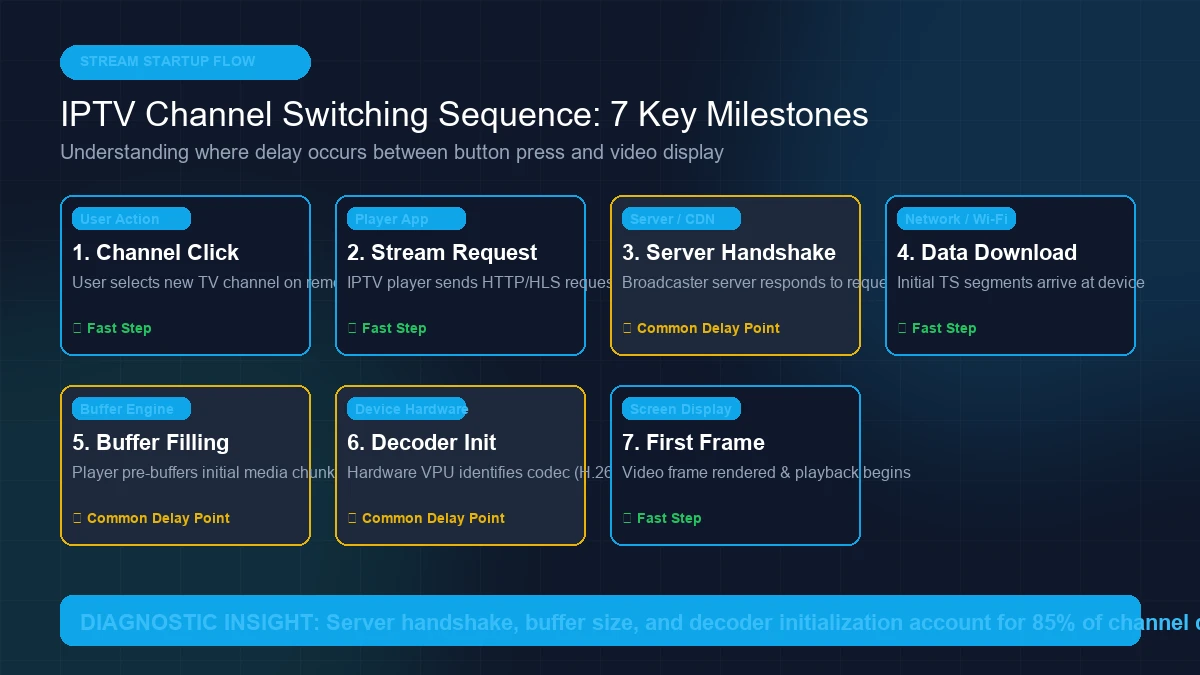 IPTV channel startup process from stream request to playback
Wi-Fi Signal Interference & Packet Jitter
Wireless connections are susceptible to radio interference, wall attenuation, and packet jitter. If initial stream request packets are dropped over Wi-Fi, your router must retransmit them, adding 500ms to 2,000ms of startup latency.
High-Bitrate and Complex Codecs
Channels encoded in HEVC (H.265) or 4K HDR carry significantly more data per frame than standard H.264 HD streams. Downloading and initializing the decoder for a 25 Mbps 4K stream takes inherently longer than a 4 Mbps HD stream.
Codec and Decoder Compatibility
If your IPTV player relies on Software (SW) decoding because hardware acceleration is disabled or unsupported, the device's CPU must calculate video frames manually, dramatically slowing down channel startup.
Player Cache and Temporary Application State
Over weeks of heavy viewing, IPTV player applications store large amounts of temporary EPG data, channel thumbnails, and stream state logs. Accumulated cache memory can slow down app responsiveness during channel changes.
How to Tell What Is Causing Slow Channel Switching
Rather than randomly changing settings, follow this systematic 7-step diagnostic process to isolate the exact cause of slow loading:
Test 1 — Compare Several Channels Across Categories
Switch between 5 to 10 different channels (e.g., major news, sports, local networks, and movies).
- If ONLY ONE or TWO channels load slowly: The issue is isolated to the broadcaster's specific source stream or server encoder for those channels.
- If ALL channels load slowly: The bottleneck lies in your IPTV player, streaming device, home network, or overall provider server connection.
Test 2 — Measure the Approximate Switching Time
Use a stopwatch or mobile phone timer to measure the exact interval from pressing the remote button to the appearance of a fluid video frame:
- Under 1.5 seconds: Excellent zapping speed.
- 1.5 to 3.0 seconds: Normal acceptable streaming latency.
- 3.5 to 6.0+ seconds: Slow loading requiring optimization.
Test 3 — Test Another IPTV Player Application
Install a secondary IPTV app (such as testing TiviMate, IPTV Smarters Pro, Sparkle TV, or VLC) using the same subscription credentials.
- If Channel Switching is FAST on the second app: Your primary player's buffer configuration, decoder engine, or cached data is causing the delay.
- If Channel Switching is SLOW on both apps: The issue resides in your device hardware, network, or provider server.
Test 4 — Test Another Hardware Device
Access your IPTV service on a different device connected to the same home Wi-Fi (e.g., compare a Smart TV with a smartphone or laptop).
- If fast on smartphone but slow on Smart TV: The Smart TV's limited processor or internal app decoder is the primary bottleneck.
Test 5 — Compare Wi-Fi and Ethernet Connections
If possible, temporarily connect your streaming device directly to your router using an Ethernet cable.
- If switching speed improves dramatically: Wireless signal latency, Wi-Fi interference, or channel congestion was delaying packet transmission.
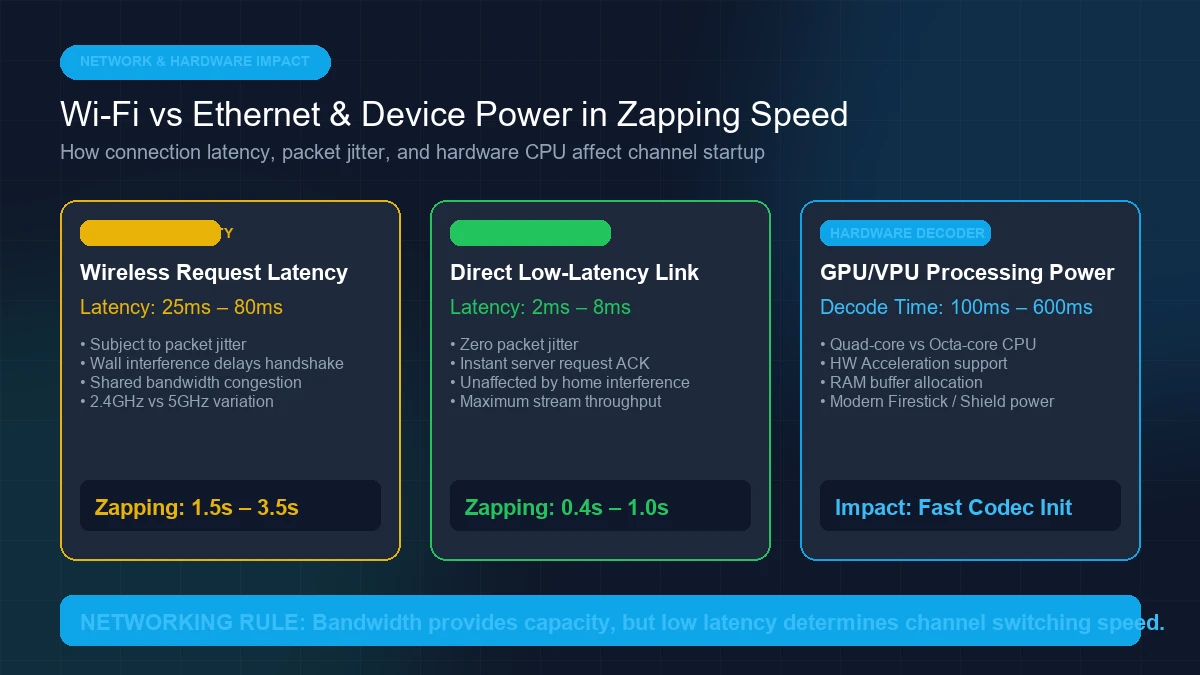 IPTV streaming device connected through Wi-Fi and Ethernet
Test 6 — Compare HD and 4K Stream Versions
If your provider offers both HD and 4K versions of the same channel, compare switching times.
- If HD switches in 1 second while 4K takes 5 seconds: The device GPU or stream bitrate size is extending buffer initialization time.
Test 7 — Compare Live TV Zapping vs. VOD Startup Speed
Open a Video on Demand (VOD) movie and observe how quickly playback begins compared to live sports or news streams.
- If VOD starts instantly but Live TV is slow: Live broadcast server handshakes or encoder keyframe intervals are contributing to the delay.
Premium FreeGoTV Streaming — Save 61% Today
Unlock crystal-clear HD/4K streaming, advanced EPG, and zero buffering. Get our Ultimate 12-month plan for just $69.99.
- Premium Antifreeze
- Instant Setup
12 Practical Ways to Improve IPTV Channel Switching Speed
Follow these solutions ranked from easiest to more advanced to optimize zapping speed on your streaming setup:
Fix 1 — Restart the IPTV Player Application
Force-closing and reopening your IPTV player flushes active memory streams, clears temporary session sockets, and re-initializes player rendering engines.
Fix 2 — Restart Your Streaming Device
Rebooting your Amazon Firestick, Smart TV, or Android box frees up system RAM, terminates background app processes, and resets the hardware video processing unit (VPU).
Fix 3 — Update Your IPTV Player to the Latest Version
Developers frequently release performance patches that optimize stream buffer handling, upgrade decoder libraries, and reduce channel zapping latency. Always update apps through official app stores (Google Play, Amazon Appstore, Apple App Store).
Fix 4 — Clear Application Cache (Clear Cache ≠ Clear Data)
Over time, cached EPG guide data and media buffer fragments accumulate in device storage:
- Navigate to your device Settings -> Applications -> Manage Installed Applications.
- Select your IPTV Player app.
- Click Clear Cache.
WARNING: Do not select "Clear Data" unless you want to erase your saved playlists and login credentials.
Fix 5 — Select a Compatible & Optimized IPTV Player
Different IPTV applications utilize different media playback engines. While basic players rely on standard system webviews, dedicated players like TiviMate, Sparkle TV, and OTT Navigator feature custom buffer pipelines designed specifically for ultra-fast live channel switching. Explore our guide on the Best IPTV Players for 2026 to find the right app for your device.
Fix 6 — Optimize Player Pre-Buffer Settings
Most advanced IPTV apps allow you to manually configure the Stream Buffer Size:
- Navigate to Player Settings -> Buffer Size or Pre-Buffer.
- Change the setting from "Large (5 Seconds)" or "Auto" to "Small (0.5 Seconds)" or "None".
- Note: Setting buffer size to minimal values speeds up channel switching, but requires a highly stable internet connection to prevent mid-stream buffering.
Fix 7 — Improve Network Connection & Use Ethernet
Eliminating wireless latency is one of the most effective hardware upgrades for zapping speed:
- Connect your streaming box to your router using a Cat6 Ethernet cable.
- If Ethernet is not feasible, connect your device to the 5GHz Wi-Fi band rather than the 2.4GHz band to avoid household radio interference.
Fix 8 — Restart Your Internet Router
Rebooting your modem/router clears stale IP routing tables, resets NAT connection limits, and establishes a fresh connection to your ISP's gateway servers.
Fix 9 — Reduce Home Network Congestion
Large background file downloads, peer-to-peer sharing, cloud backups, or simultaneous 4K streams on other family devices increase router packet queue latency. Pause heavy downloads while watching live TV.
Fix 10 — Optimize Storage & Remove Unused Apps
Streaming devices with low available internal storage (under 1 GB remaining) experience severe OS throttling, which delays app launching and stream decoding:
- Uninstall unused streaming apps and games.
- Clear cached files across all installed applications.
- For step-by-step instructions, see our official FreeGoTV Firestick Setup & Maintenance Guide.
Fix 11 — Test Hardware vs. Software Video Decoding
Navigate to your IPTV player's Playback Settings and test different decoder frameworks:
- Hardware (HW / HW+ Acceleration): Uses dedicated GPU decoding chips for fastest frame rendering on modern Firestick and Android devices.
- Software (SW) Decoding: Uses the main CPU. Switch to Software decoding only if a specific stream format causes a black screen under Hardware mode, as discussed in our guide to IPTV Sound But No Picture.
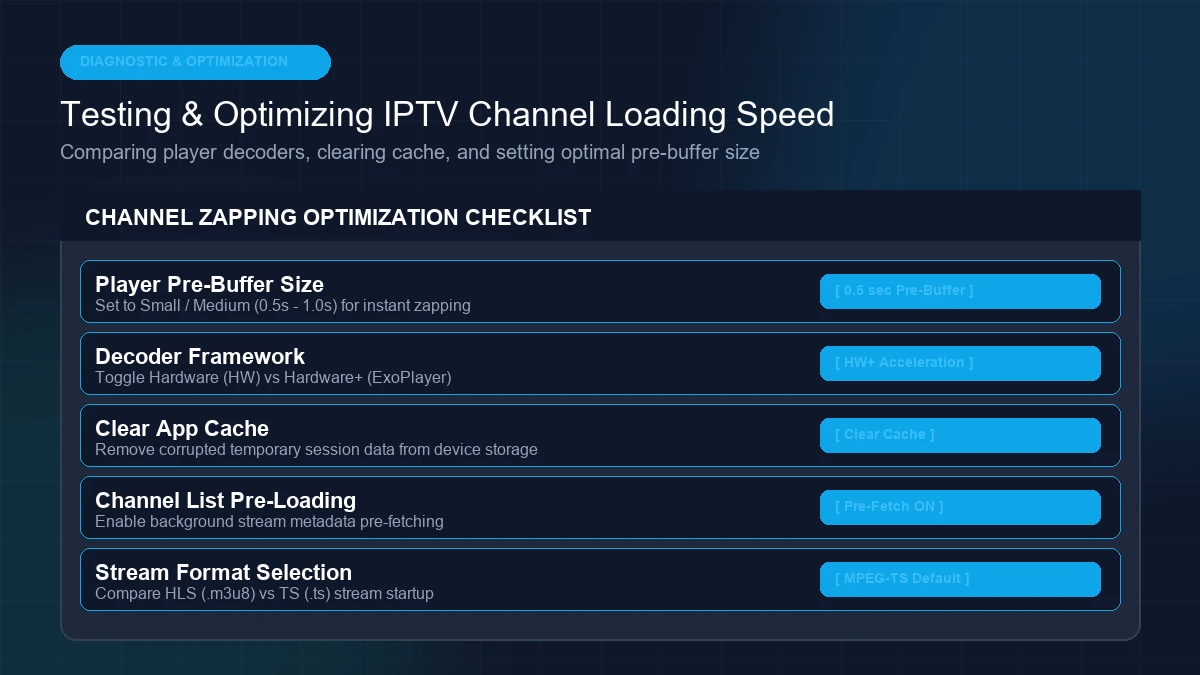 Testing IPTV channel loading speed across devices and players
Fix 12 — Contact FreeGoTV Support
If specific channels consistently take 5 to 10 seconds to load across multiple devices, players, and networks, the source broadcast server requires maintenance. Contacting our team allows engineers to inspect stream routing and optimize encoder settings.
IPTV Channel Switching on Smart TVs
Smart TVs (Samsung Tizen, LG webOS, Android/Google TV) offer all-in-one convenience, but their built-in TV OS processors are often less powerful than dedicated streaming sticks.
Tips for Faster Zapping on Smart TVs:
- Close Background TV Apps: Smart TVs keep recent apps suspended in memory. Deep-close unused apps before launching your IPTV player.
- Disable Motion Interpolation: Turn off features like LG TruMotion or Samsung Auto Motion Plus, which add video frame processing delays.
- Use Wired LAN: Connect an Ethernet cable directly to the Smart TV's LAN port.
- Use Lightweight IPTV Apps: Select fast, native Smart TV players optimized for your OS.
If you stream on multiple screens throughout your home, read our guide on How to Set Up IPTV on Multiple Devices.
IPTV Channel Switching on Firestick
The Amazon Fire TV Stick family (Firestick Lite, 4K, 4K Max, and Fire TV Cube) is the most popular IPTV hardware ecosystem in 2026.
Maximizing Firestick Channel Switching Speed:
- Free Up Storage Space: Maintain at least 1.5 GB of free space on your Firestick.
- Use Firestick 4K Max or Fire TV Cube: Higher-tier Firestick models feature faster Quad-Core/Octa-Core processors and Wi-Fi 6E chips that reduce stream startup latency by up to 50%.
- Use TiviMate with HW Acceleration: Pair your Firestick with TiviMate set to Hardware decoding for optimal performance.
Does Internet Speed Affect IPTV Channel Switching?
Give this question a nuanced technical answer: Download bandwidth matters, but internet speed alone does not dictate channel switching speed.
Bandwidth vs. Latency (Ping)
- Bandwidth (Mbps): Measures how much total data your connection can transfer per second. A 25 Mbps connection is more than enough to stream Full HD or 4K IPTV.
- Latency (Ping in ms): Measures how quickly a data packet travels from your device to the server and back. Latency is what determines channel switching responsiveness.
+-------------------------------------------------------------------------------+
| High Bandwidth (500 Mbps) + High Latency (150 ms) = SLOW Channel Switching    |
| Moderate Bandwidth (50 Mbps) + Low Latency (15 ms) = INSTANT Channel Switching|
+-------------------------------------------------------------------------------+
For detailed internet connection recommendations, refer to our master guide on What Internet Speed Do You Need for IPTV in 2026?.
Does IPTV Buffering Mean Slow Channel Switching?
It is vital to distinguish between these two separate playback phenomena:
| Feature | Slow Channel Switching | IPTV Buffering |
|---|---|---|
| When It Happens | During channel change transition | During active stream playback |
| Visual Symptom | Black screen or loading spinner before video starts | Video freezes, stutters, or pauses to reload data |
| Primary Bottleneck | Server request ACK, pre-buffer size, decoder init | Low download bandwidth, Wi-Fi dropouts, server load |
| Main Solutions | Lower buffer size, upgrade device, switch player | Fix Wi-Fi signal, increase internet speed, use Ethernet |
| Related Guide | This Guide | IPTV 4K Buffering Guide |
Why Does One IPTV Channel Load Faster Than Another?
You may notice that Channel 5 opens instantly in 0.8 seconds, while Channel 12 takes 4.5 seconds on the exact same app. Channels differ due to several technical factors:
- Source Server Location: Channels hosted on edge CDN servers closer to your geographical location connect faster.
- Keyframe Interval (GOP Size): Broadcasters configured with 1-second keyframe intervals deliver viewable frames faster than those with 4-second intervals.
- Stream Encoding Format: Standard H.264 streams initialize decoders faster than high-profile HEVC 4K streams.
- Current Channel Viewer Load: High-demand live sports channels during major events experience heavier server connection queues.
Why Does IPTV Get Slower During Busy Hours?
Channel zapping responsiveness can decrease during peak evening hours (7 PM – 11 PM) due to three potential factors:
- ISP Network Throttling & Congestion: Local neighborhood internet nodes experience peak traffic, increasing network latency.
- Household Network Usage: Family members streaming 4K video, playing online games, or downloading updates simultaneously.
- Server Request Queues: Thousands of users changing channels simultaneously during live match halftime intervals can create temporary server connection queues.
Quick IPTV Channel Switching Checklist
Keep this quick reference checklist handy whenever troubleshooting channel loading performance:
- Test 5 to 10 different channels to isolate single-channel issues
- Measure approximate channel startup time with a stopwatch
- Restart your IPTV player application
- Reboot your streaming stick or Smart TV
- Clear IPTV app cache (do not clear data)
- Update your IPTV player app to the latest build
- Set player stream pre-buffer size to "Small (0.5s)" or "None"
- Enable Hardware (HW / HW+) Acceleration in player settings
- Connect device via Ethernet or 5GHz Wi-Fi
- Test your subscription on a secondary IPTV player app
- Test subscription on a second device (e.g., smartphone)
- Contact FreeGoTV Support if delays persist across all channels
When Should You Contact FreeGoTV Support?
If you have verified that your home network is fast, your device hardware is responsive, and your player application is updated—but specific channels continue to exhibit 5+ second loading delays—reach out to our support team.
Helpful Information to Provide Support:
To help our engineers resolve server-side routing issues quickly, include the following details in your ticket:
- Name of the affected channels.
- Average switching delay time (e.g., 6 seconds).
- Device model (e.g., Firestick 4K Max, Samsung Smart TV).
- IPTV player application used (e.g., TiviMate v4.7).
- Connection type (Wi-Fi or Ethernet).
- Whether the same delay occurs on a secondary app or device.
Visit our official FreeGoTV Contact Page or check our Frequently Asked Questions to submit a diagnostic request.
Still Experiencing Audio Sync Problems?
If local device adjustments didn't fix the delay, our team can inspect source stream synchronization and assist with your setup.
- Priority Server Inspection
- Step-by-Step Setup Help
Frequently Asked Questions
Final Thoughts: Optimizing Your IPTV Zapping Speed in 2026
Channel switching speed is not governed by a single setting—it is the result of an interconnected chain:
$$ ext{Stream Source} ightarrow ext{Server Response} ightarrow ext{Network Latency} ightarrow ext{Player Buffer} ightarrow ext{Device VPU} ightarrow ext{TV Display}$$
By isolating bottlenecks, testing different players, tuning pre-buffer sizes, and ensuring a low-latency network connection, you can achieve lightning-fast zapping speed across all your favorite channels.
Pairing your hardware optimizations with an ultra-reliable, high-bandwidth service like FreeGoTV delivers the ultimate television experience. Check out our flexible subscription plans on our Pricing Page, learn more about our service infrastructure on our How It Works page, or reach out to our team today!