IPTV 4K Buffering: How to Fix 4K Streaming Problems
Premium FreeGoTV Streaming — Save 61% Today
Unlock crystal-clear HD/4K streaming, advanced EPG, and zero buffering. Get our Ultimate 12-month plan for just $69.99.
- Premium Antifreeze
- Instant Setup
IPTV 4K Buffering: How to Fix 4K Streaming Problems
Introduction
Nothing ruins movie night faster than seeing the dreaded loading circle in the middle of an intense scene. IPTV 4K buffering is a common problem, and it looks exactly like standard buffering, but with much higher stakes due to the massive data size of 4K streams.
Why do 4K streams buffer more often? A 4K video contains four times the pixels of a standard 1080p HD video. This means 4K IPTV streaming requires significantly more bandwidth, a more stable network connection, and a device capable of processing all that data smoothly. It's important to remember that buffering does not always mean the IPTV service itself is broken. More often than not, it points to a bottleneck somewhere between the provider's server and your screen.
In this guide, we'll explain how to properly diagnose the problem by checking your network, device, application, and stream. Whether you're using the premium FreeGoTV platform or another provider, we’ll help you eliminate IPTV 4K streaming problems for good.
What Causes IPTV 4K Buffering?
To effectively stop IPTV buffering in 4K, it helps to understand what usually causes it. The most frequent culprits include:
- Insufficient or unstable internet connection
- Wi-Fi interference
- Network congestion
- Router problems
- Device limitations
- IPTV player issues
- Outdated software
- 4K decoding limitations
- Stream quality
- Server/stream-side problems
- Multiple devices using the same connection
- Incorrect video settings
Each of these issues can disrupt the steady flow of data required to render 4K video, causing playback to stall. Let's break down how to fix them.
1. Check Your Internet Connection
When it comes to 4K streaming issues, the internet connection is usually the prime suspect. However, it's not just about the raw download speed your ISP advertises. A stable connection matters far more than simply having a high "max speed."
A good 4K stream generally requires a steady download speed of at least 25-30 Mbps. But beyond speed, you must also consider:
- Stability: Does your speed drop randomly?
- Latency (Ping): A high ping can delay data packets.
- Packet loss: Missing data forces the stream to pause and request it again.
- Network congestion: Peak hours in your neighborhood can slow down your entire connection.
If you suspect your connection isn't fast enough, we recommend testing your speed directly on the device you use for streaming.
2. Test Your Connection on Another Device
Are you wondering if the issue is the internet connection, the IPTV device, the IPTV application, or the specific stream? The fastest way to find out is to test the exact same 4K stream on another device.
For instance, try loading the channel on your smartphone or computer connected to the same network. If it plays perfectly on your phone but buffers on your Smart TV, you know the internet and the provider are fine—the issue is likely the TV's network card or performance. If you need help verifying your stream, check our guide on IPTV Not Working: 20 Things to Check.
3. Use Ethernet Instead of Wi-Fi
Wi-Fi is convenient, but it is highly susceptible to interference. Walls, microwaves, and even neighboring Wi-Fi networks can disrupt your signal.
For fixing an IPTV buffer fix issue in 4K, an Ethernet (wired) connection is almost always superior. It provides maximum stability, lower latency, and zero wireless interference.
If you must use Wi-Fi, try connecting to the 5 GHz band instead of the 2.4 GHz band. The 5 GHz band is much faster and less congested, though it has a shorter range. A strong, stable Wi-Fi connection can also work well, provided the router is close to the device.
4. Restart Your Router
Before digging into complex settings, try the oldest trick in the book: restarting your router.
- Stop streaming and close the IPTV app.
- Turn off and unplug your router from the power outlet.
- Wait for about 30 seconds.
- Plug it back in and turn it on.
- Wait a few minutes for the connection to fully stabilize.
- Test the 4K stream again.
This simple process clears the router's temporary cache and re-establishes a fresh connection to your ISP.
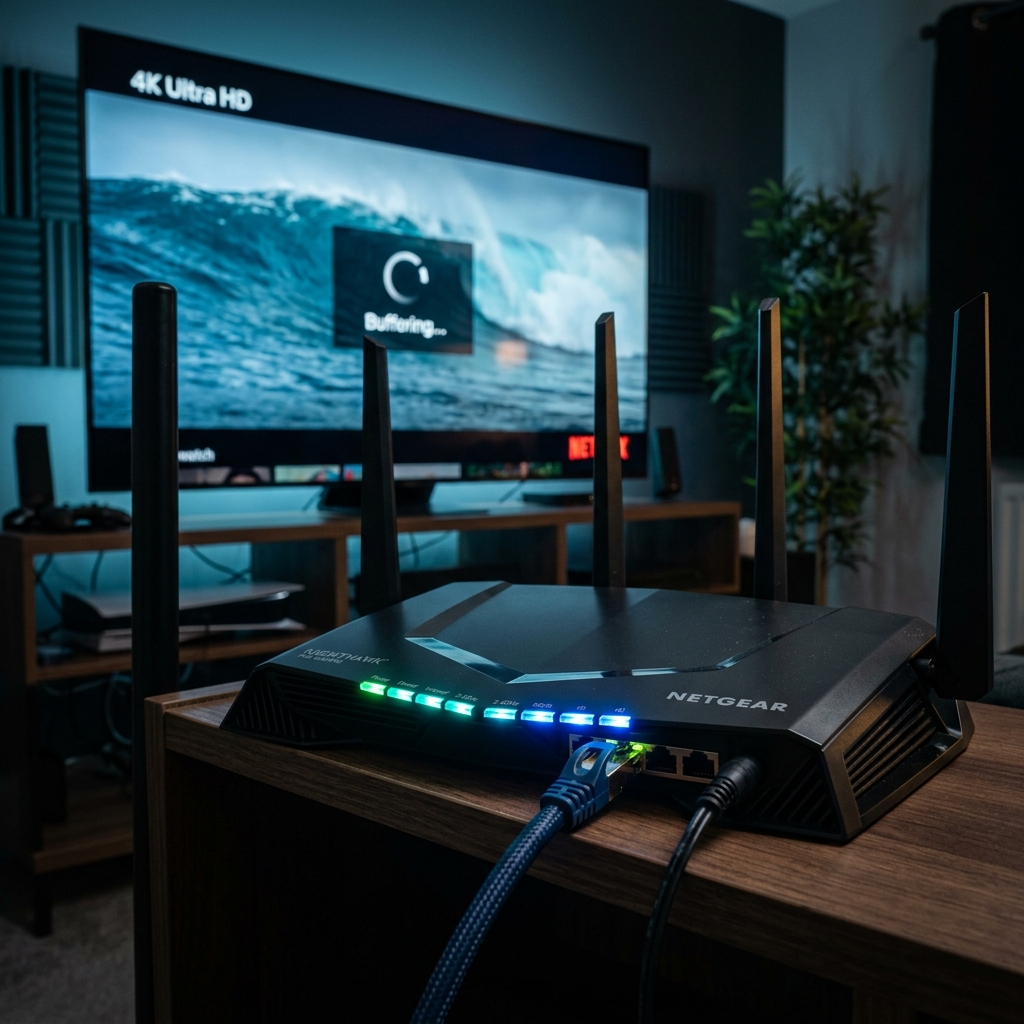 Network troubleshooting for IPTV 4K buffering and streaming problems
5. Reduce Network Congestion
Your internet bandwidth is shared among all the devices in your home. If you're trying to watch a 4K stream while someone else is using the network heavily, you will likely experience buffering.
Common sources of heavy network congestion include:
- Large file downloads
- Cloud backups (like iCloud or Google Photos syncing)
- Online gaming
- Video calls (Zoom, Skype)
- Other streaming devices (Netflix, YouTube)
- Large background software updates
Reducing simultaneous traffic can drastically improve the consistency of your IPTV streaming quality.
6. Restart Your IPTV Device
Sometimes, the hardware running your IPTV player just needs a breather. Whether you use a Smart TV, Firestick, Android TV Box, Apple TV, smartphone, tablet, or computer, memory leaks or temporary software hangups can affect playback.
Restarting your device clears its RAM and forces a fresh boot of the operating system. Simply unplug the device or use its internal menu to restart it completely.
7. Check Whether Your Device Can Handle 4K
This is a critical point that is often overlooked: 4K streaming requires compatible hardware and display capabilities. Just because an IPTV provider offers a 4K channel doesn't mean every device can play it.
To handle a 4K IPTV buffering fix, your device must have the raw processing power to decode 4K video files in real-time. Older Smart TVs and low-end Android boxes often struggle with this, leading to stuttering and buffering. Ensure your device natively supports 4K output and has adequate hardware decoding capabilities.
If you're in the market for a capable device, check out our Supported Devices section to ensure you have the right hardware for the job.
8. Update Your IPTV Application
IPTV applications are constantly being updated to handle new video codecs and improve performance. Using an outdated application can cause:
- Playback issues
- Compatibility problems
- Decoder problems
- Performance issues
Always check your device's app store or the developer's official website to ensure you are running the latest version of your preferred IPTV player.
9. Update Your Smart TV or Streaming Device
Just like the application, your device's operating system needs to be up to date. Updates often include critical patches for video playback engines and network drivers.
Be sure to regularly check for:
- Smart TV firmware updates
- Fire TV software updates
- Android TV updates
- Apple TV operating-system updates
Updated software can significantly improve compatibility and stability across the board.
Premium FreeGoTV Streaming — Save 61% Today
Unlock crystal-clear HD/4K streaming, advanced EPG, and zero buffering. Get our Ultimate 12-month plan for just $69.99.
- Premium Antifreeze
- Instant Setup
10. Check IPTV Player Video Settings
Depending on the IPTV player you are using (such as TiviMate, Smarters, or XCIPTV), you may have access to advanced video settings that dictate how streams are processed.
Look for settings related to:
- Hardware acceleration
- Decoder selection
- Video output method
- Playback engine selection
- Buffer settings (increasing the buffer size can help smooth out minor network drops)
Keep in mind that available options vary by application. Do not give dangerous or unsupported configuration instructions—if you are unsure what a setting does, it's best to leave it on "Auto."
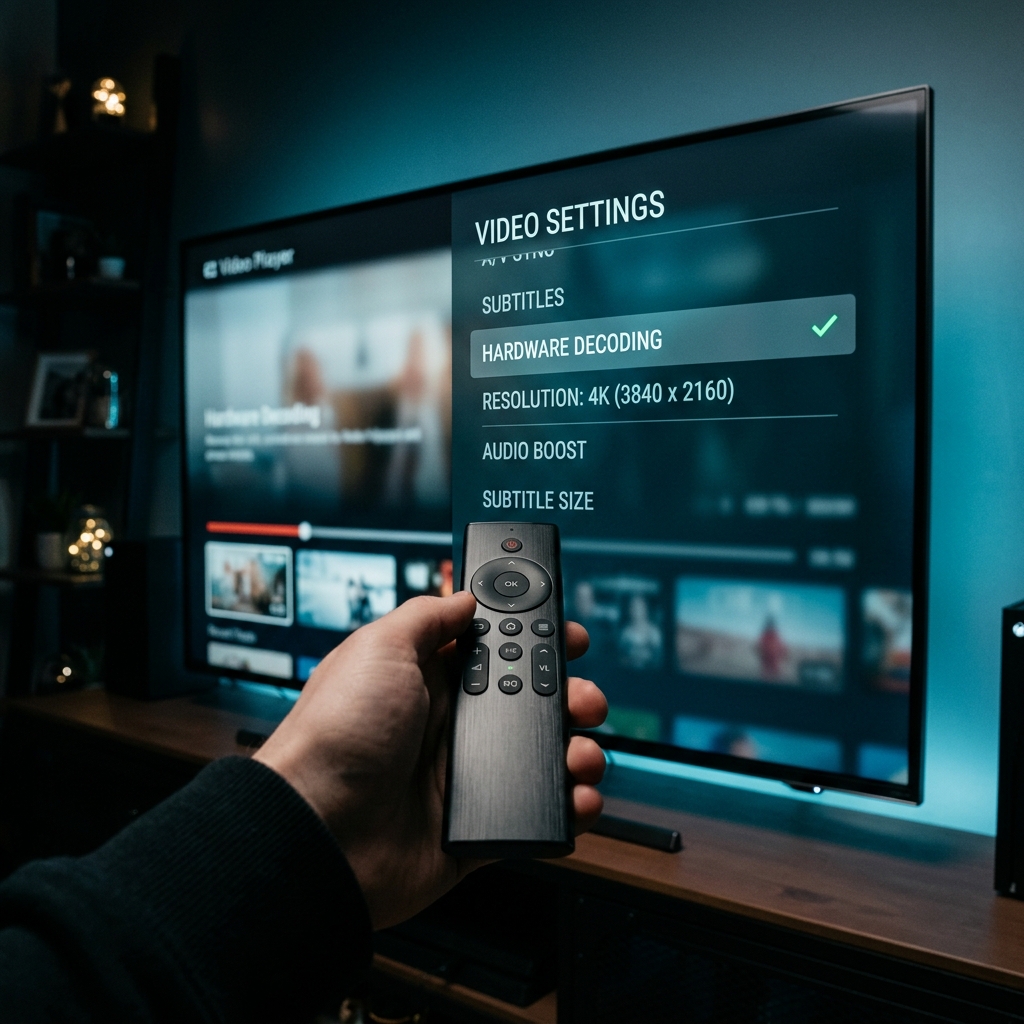 IPTV player and device settings for fixing 4K streaming problems
11. Test Hardware and Software Decoding
Many popular IPTV players allow you to choose between two main decoding methods:
Hardware decoding uses your device's dedicated graphics chip. It is usually faster, smoother, and more efficient, but it relies on your device natively supporting the specific video format.
Software decoding uses the device's main processor (CPU). It is highly compatible with almost any video format but requires significantly more processing power, which can cause older devices to overheat or lag.
Some devices perform better with one option than another. If your IPTV player supports decoder selection, test the available options (Hardware vs. Software) individually on the 4K stream to see which provides the smoothest playback.
12. Test Another 4K Channel
It is entirely possible that a single 4K channel is experiencing source issues while the rest of the service works perfectly.
Testing another 4K channel can help you determine whether the issue is:
- Channel-specific (only one stream is buffering)
- Stream-specific (a certain group of channels)
- Device-wide (every 4K channel buffers)
- Network-wide
If multiple channels are failing to load entirely, you might want to review our guide on why IPTV channels are not loading.
13. Compare 4K With HD
A highly effective diagnostic step is to compare your 4K stream with a standard HD (1080p) or SD stream.
If the HD stream works normally but the 4K stream buffers, the issue is likely related to:
- Available internet bandwidth (4K needs much more speed)
- Device performance (your device might struggle to decode 4K)
- 4K decoding compatibility
- The specific 4K stream's bitrate
- General network stability
Do not automatically blame the provider if HD works perfectly. It usually indicates a local bottleneck preventing the massive 4K data from processing fast enough.
14. Clear the IPTV App Cache
Over time, your IPTV app accumulates temporary data (cache). A corrupted or overloaded cache can sometimes contribute to application problems, memory leaks, and stuttering playback.
To clear the cache, navigate to your device's app settings, locate your IPTV application, and select "Clear Cache."
Warning: Be careful not to select "Clear Data" unless absolutely necessary, as doing so may remove your saved login information, playlists, and custom settings.
15. Try Another Compatible IPTV Player
If you're still experiencing how to stop IPTV buffering, the current player application itself may be poorly optimized for 4K streams on your specific device.
If the FreeGoTV service (or your current provider) supports multiple compatible players, testing another highly-rated player can help isolate the problem. Often, simply switching apps resolves mysterious playback issues.
16. Check Your HDMI Connection
If you use an external 4K streaming device (like a Firestick 4K or Apple TV 4K) plugged into a TV, the physical HDMI connection matters.
Check your:
- HDMI cable (ensure it is rated for High Speed / 4K)
- HDMI port on the TV (some TVs only support 4K 60Hz on specific ports)
- TV input settings
- Device output settings
While HDMI issues are more likely to cause a "no signal" error or visual artifacts rather than buffering, a poor connection can sometimes force the device into a lower compatibility mode. If you are getting sound but a black screen, check our guide: IPTV Has Sound but No Picture.
17. Check Your TV and Display Settings
Verify that your TV is correctly configured to display 4K content from external devices.
Review your TV's:
- Resolution settings
- Refresh rate
- Automatic resolution scaling
- HDR settings (if applicable)
- HDMI "Enhanced Format" or "Deep Color" settings
Consult your TV's manual to ensure the specific HDMI port you are using is configured for maximum bandwidth.
18. Test Another Device
Testing the exact same 4K IPTV stream on a completely different compatible device on the same network is one of the most powerful diagnostic steps available.
The logic is simple: If it works flawlessly on another device: You must investigate the original device, its network connection, or its specific application. If it buffers on multiple compatible devices: You must investigate your router, internet service provider, or the IPTV provider's stream.
19. Check Other Devices on Your Network
As mentioned earlier, network congestion is a major factor. If multiple devices are actively downloading, streaming, or syncing data simultaneously, the total available bandwidth for your 4K stream shrinks dramatically.
Try disconnecting or pausing other heavy internet activities while testing your 4K stream to rule out local bandwidth exhaustion.
20. Contact Your IPTV Provider
When should you finally contact support? Reaching out to your provider becomes appropriate when:
- Multiple 4K and HD channels buffer constantly.
- Multiple compatible devices on your network show the exact same behavior.
- You have verified your internet connection is fast and stable.
- Your device and application are fully updated.
- Basic troubleshooting steps have failed.
If you are a FreeGoTV subscriber, we are always here to help. Just remember that while we provide premium servers, we cannot guarantee completely buffer-free viewing if local network or device limitations exist. Our Customer Support team can help diagnose server-side issues quickly.
QUICK 4K BUFFERING CHECKLIST
To quickly resolve IPTV 4K streaming problems, run through this list:
- Test another 4K channel.
- Test an HD channel.
- Check internet stability.
- Test Ethernet (wired connection).
- Restart router.
- Reduce network congestion.
- Restart IPTV device.
- Update IPTV application.
- Update device software.
- Check 4K compatibility on your device.
- Check decoder settings (Hardware vs Software).
- Test another IPTV player.
- Clear app cache.
- Check HDMI cable and port.
- Check TV display settings.
- Test another compatible device.
- Contact support if the problem persists.
Troubleshooting 4K IPTV with FreeGoTV
If you are a subscriber using the FreeGoTV service, you can use the exact diagnostic process outlined above. Determine whether the buffering problem is related to your internet connection, Wi-Fi stability, device capabilities, the IPTV player, 4K compatibility, an individual stream, or a service-side issue.
FreeGoTV provides robust, optimized servers designed to deliver exceptional 4K quality. If you want to experience the difference a premium service makes, explore our IPTV plans from FreeGoTV.
For more information, you can review our Features page or visit our FAQ for instant answers to common questions.