IPTV Not Working: 20 Things to Check Before Contacting Your Provider
Premium FreeGoTV Streaming — Save 61% Today
Unlock crystal-clear HD/4K streaming, advanced EPG, and zero buffering. Get our Ultimate 12-month plan for just $69.99.
- Premium Antifreeze
- Instant Setup
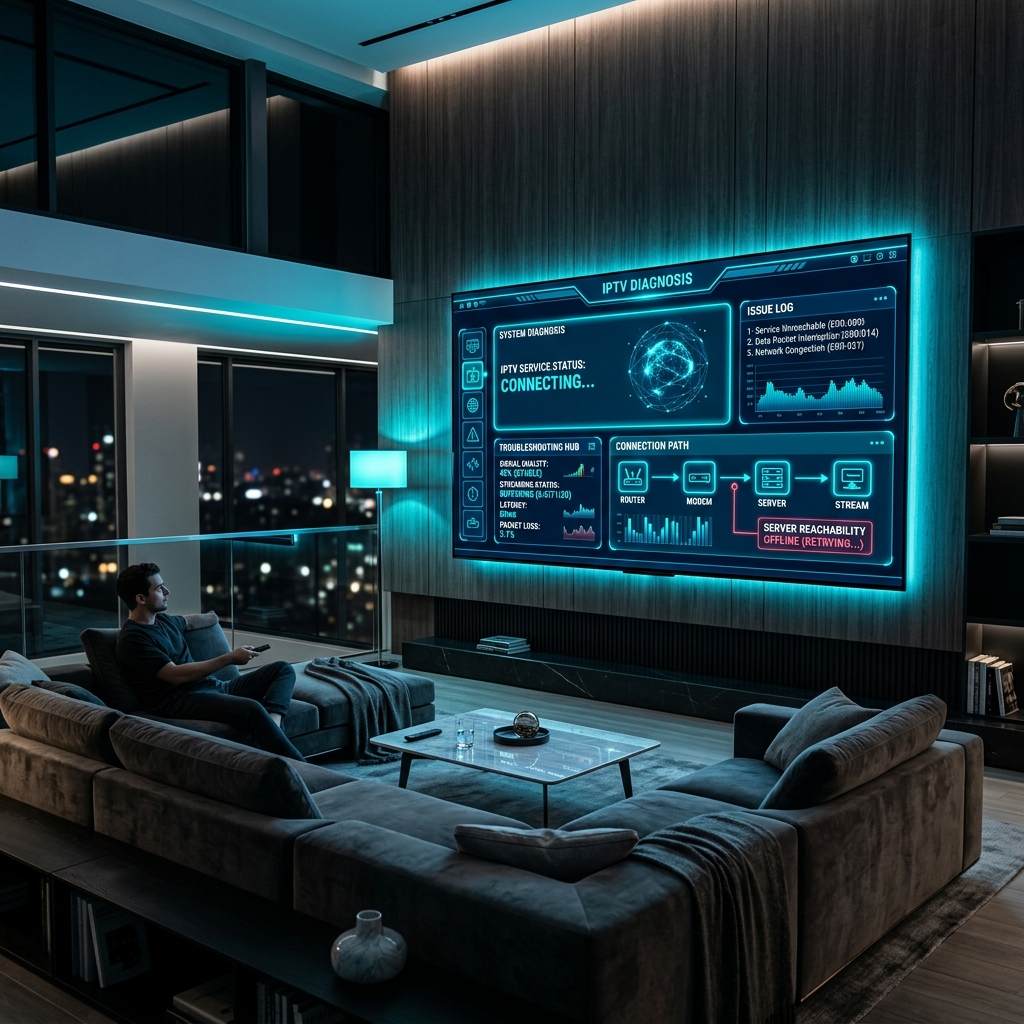
IPTV Not Working: 20 Things to Check Before Contacting Your Provider
Introduction
Nothing is more frustrating than settling down to watch your favorite show or live sports event, only to find your IPTV not working. While it's easy to immediately blame your service provider, the truth is that IPTV problems can have many different causes, and the provider is not always responsible.
Common causes of IPTV streaming problems include:
- Unstable internet connection
- Outdated IPTV application
- Device performance issues
- Incorrect login credentials
- Corrupted playlist or M3U
- Server connection timeouts
- Electronic Program Guide (EPG) failures
- Local network configuration
- Outdated software
The good news? You can often identify and fix the problem yourself by checking a few things first. Whether you use the FreeGoTV platform or another service, this comprehensive guide will walk you through the troubleshooting steps.
1. Check Your Internet Connection
The most common reason for IPTV not loading is a poor or unstable internet connection. IPTV requires a stable, continuous flow of data to deliver high-quality video without interruptions.
Before doing anything else, check:
- Whether other websites work on your device
- Whether other streaming services (like YouTube or Netflix) work
- Your Wi-Fi connection strength
- Your Ethernet connection (if wired)
- Your router status
If you're unsure about your internet setup, check our Setup Guide for best practices on setting up a stable streaming environment.
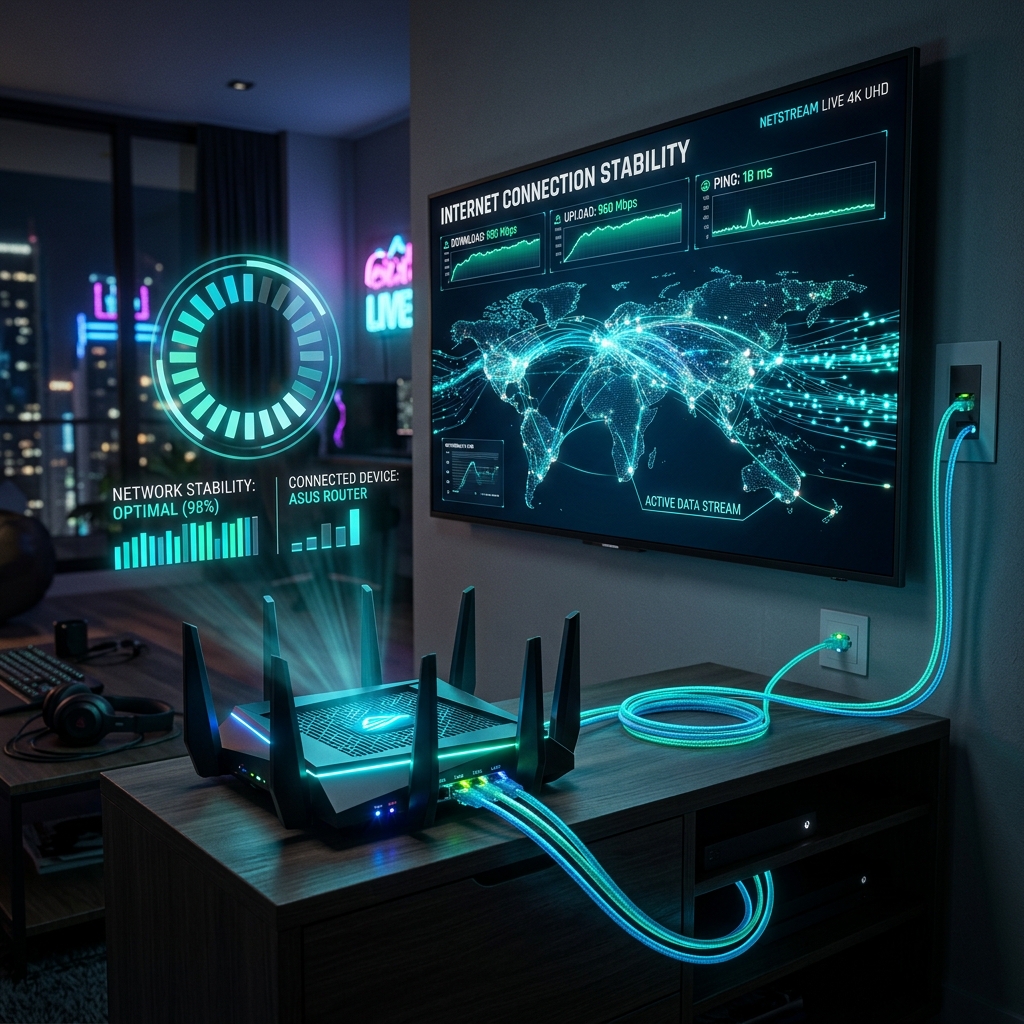 IPTV Connection and Buffering Troubleshoot
2. Restart Your Router
If your internet connection seems slow or unresponsive, restarting the router can often resolve temporary network issues and clear up network congestion.
Provide a fresh connection by simply unplugging your router from the power outlet, waiting for 30 seconds, and plugging it back in. Wait a few minutes for the connection to fully re-establish before checking your IPTV service again.
3. Restart Your IPTV Device
Sometimes, the device you are using simply needs a fresh start. Restarting your hardware can resolve temporary software glitches and free up memory.
Whether you are using a:
- Smart TV
- Firestick
- Android TV Box
- Smartphone
- Tablet
- Computer
A simple reboot can work wonders. If you need help finding the best device to use, check our list of supported IPTV devices.
4. Restart the IPTV Application
If your device is running fine but the IPTV app is frozen or failing to load correctly, the app itself might be the issue.
Suggest taking these steps:
- Closing the application completely
- Reopening it
- Force stopping it (via your device settings) if supported by your operating system
5. Check Your IPTV Login Details
If you are receiving an "IPTV login failed" error, incorrect credentials can prevent access to your service entirely.
Carefully verify your:
- Username
- Password
- Server URL
Remember that passwords are case-sensitive. A single typo or an accidental space added at the end of your username can stop you from logging in.
6. Check Whether Your Subscription Is Active
Expired or inactive subscriptions are a common cause of sudden access problems. If your account has lapsed, you won't be able to connect to the servers.
If you are a FreeGoTV user, you can easily review the IPTV pricing and renew or upgrade your plan to restore your access instantly.
7. Test Another Channel
Is the problem isolated or widespread? Testing multiple channels helps identify whether:
- One specific channel is affected
- A specific group of channels is down
- The entire service is affected
If only one channel is down, it's likely a temporary source issue. You can explore our massive library of channels to find an alternative while the specific stream is fixed.
8. Check Whether VOD Works
Testing your Video on Demand (VOD) library—movies or series—can help you distinguish between:
- Live TV server problems
- VOD server problems
- General service problems affecting everything
If VOD works but Live TV doesn't, the issue is likely related to the live broadcast servers.
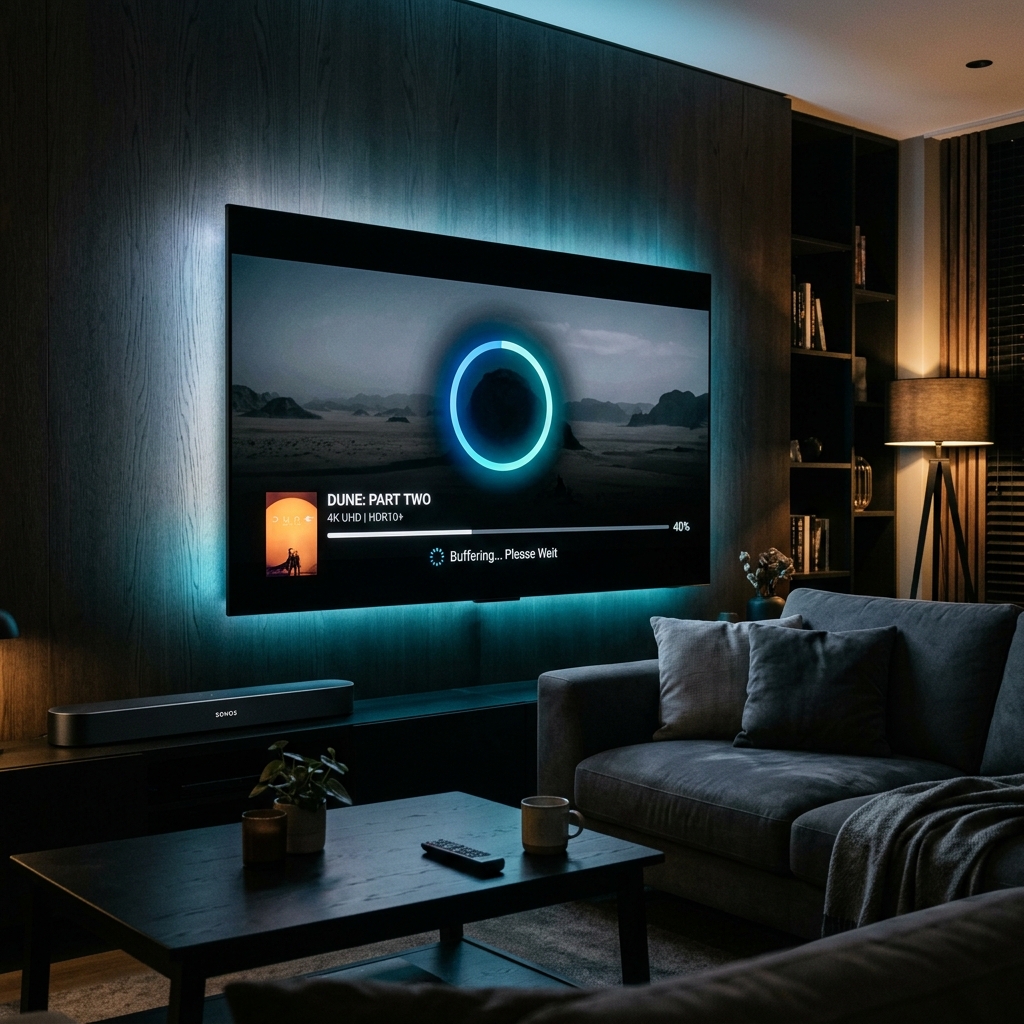
9. Check for IPTV Buffering
If your video is stuttering, pausing, or showing a loading circle, you are experiencing IPTV buffering. Common causes include:
- Weak Wi-Fi signal
- Slow internet connection
- Local network congestion (too many devices connected)
- Device performance limitations
- Streaming a very high-quality source (like 4K) on a slow connection
Premium FreeGoTV Streaming — Save 61% Today
Unlock crystal-clear HD/4K streaming, advanced EPG, and zero buffering. Get our Ultimate 12-month plan for just $69.99.
- Premium Antifreeze
- Instant Setup
10. Test With Ethernet
While Wi-Fi is convenient, it is susceptible to interference from walls, other electronics, and distance.
Using a wired Ethernet connection can provide a much more consistent and stable connection than weak Wi-Fi, dramatically reducing buffering and connection drops. Whenever possible, hardwire your streaming device to your router.
11. Check Your Internet Speed
Speed requirements vary depending on video quality. If your internet is too slow, your stream will struggle.
General minimum requirements:
- SD (Standard Definition): ~3 Mbps
- HD (High Definition): ~5-8 Mbps
- Full HD (1080p): ~10-15 Mbps
- 4K Ultra HD: ~25+ Mbps
Run a quick speed test on your device to ensure you meet these requirements.
12. Clear the IPTV App Cache
Over time, cached data can build up and sometimes cause application problems, leading to crashes or channels failing to load.
To fix this, go to your device's settings, find the applications menu, select your IPTV app, and choose "Clear Cache" (Note: Do not click "Clear Data" unless you are prepared to re-enter your login details).
13. Update the IPTV Application
Using an outdated application can cause:
- Compatibility issues with the server
- Playback problems
- Login failures
- Unexpected crashes
Check your device's app store or the developer's website to ensure you are running the latest version of your IPTV player.
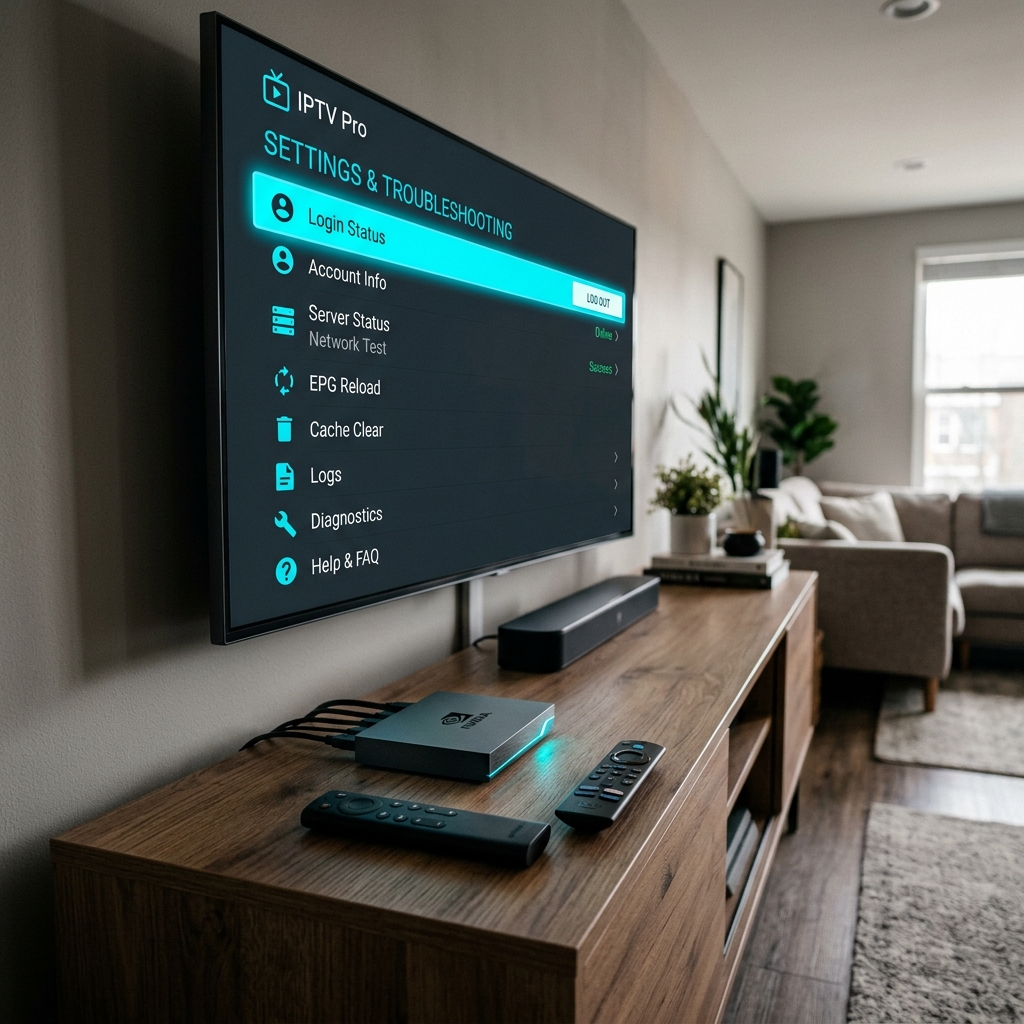 IPTV Device and Application Troubleshooting
14. Update Your Device
Just like apps, outdated operating systems can sometimes create compatibility issues. Ensure that your:
- Smart TV software
- Fire TV software
- Android TV software
- Mobile operating systems
are all fully updated to their latest versions.
15. Check Your IPTV Player
Remember that the IPTV provider (who supplies the channels) and the IPTV player (the app you use to watch them) are not necessarily the same thing.
Sometimes the app itself has a bug. If you are experiencing playback issues, try installing a different, reputable IPTV player to see if the problem persists.
16. Check Your M3U or Playlist
If you use an M3U link instead of an Xtream Codes login, incorrect or expired playlist information can prevent channels from loading.
Ensure your M3U link is complete, doesn't contain typos, and hasn't been blocked. If you copied and pasted the link, make sure you didn't accidentally cut off the end of the URL.
17. Check the EPG
The Electronic Program Guide (EPG) is the menu that shows you what is currently playing.
If your EPG fails to load:
- Channels may still work perfectly fine
- Program information and schedules may be missing
- It does not always mean the entire IPTV service is down
Usually, manually refreshing the EPG in your app settings will resolve this issue.
18. Check Your Device's Date and Time
This is a frequently overlooked issue! Incorrect date and time settings on your device can sometimes cause authentication or secure connection-related problems.
Suggest enabling "Automatic Date and Time" in your device settings to ensure it syncs correctly with the internet.
19. Try Another Compatible Device
Testing the same service on another compatible device can help determine whether the issue comes from your:
- Device (hardware failing)
- Application (software bug)
- Network (local restriction)
- Account (login issue)
- Service (server-side issue)
If your FreeGoTV IPTV account works on your smartphone but not your TV, you instantly know the issue is related to the TV itself.
20. Check Whether the Problem Is Provider-Side
After completing all the previous checks, it is highly likely that the problem is on the provider's side.
Possible signs of a provider issue:
- Multiple devices in your home are affected
- Multiple channels are completely down
- Other users are experiencing the same issue
- You face consistent login/server timeout problems despite correct credentials
- A service-wide outage has been announced
When you've ruled out everything on your end, it makes sense to contact the provider for assistance. We stand by our service, which is why you can review our Refund Policy if things aren't working out on our end.
QUICK TROUBLESHOOTING CHECKLIST
- Check internet connection
- Restart router
- Restart device
- Restart IPTV app
- Verify login details
- Check subscription status
- Test multiple channels
- Test VOD
- Check buffering
- Try Ethernet
- Check internet speed
- Clear cache
- Update IPTV app
- Update device
- Check IPTV player
- Verify M3U/playlist
- Check EPG
- Check date and time
- Test another device
- Contact provider if necessary
WHEN SHOULD YOU CONTACT YOUR IPTV PROVIDER?
You should reach out to your provider's support team when:
- Your credentials appear correct but the login still fails
- Multiple devices in your household have the exact same problem
- Multiple channels are completely unavailable
- Server or playlist information appears invalid
- The issue persists after doing all basic troubleshooting
- The problem clearly appears to be a service-side outage
If you are a FreeGoTV subscriber and need assistance, you can always reach out to our dedicated customer support team for fast help. You can also check our frequently asked questions for more instant answers.
Final Thoughts
Troubleshooting IPTV issues doesn't have to be a headache. By systematically checking your setup, you can often fix the problem in minutes.
Always determine whether the issue comes from: Internet → Device → App → Credentials → Playlist → Provider
By choosing a premium, high-quality provider like FreeGoTV, you minimize these issues significantly. With our vast IPTV features and optimized servers, you can enjoy a smoother, more reliable streaming experience.