IPTV Has Sound but No Picture: Complete Troubleshooting Guide
Premium FreeGoTV Streaming — Save 61% Today
Unlock crystal-clear HD/4K streaming, advanced EPG, and zero buffering. Get our Ultimate 12-month plan for just $69.99.
- Premium Antifreeze
- Instant Setup
IPTV Has Sound but No Picture: Complete Troubleshooting Guide
Introduction
One of the most confusing issues you can encounter is when your IPTV stream has audio, but the screen is entirely black or the video does not appear. You can hear the game, the dialogue, or the background music, but there's absolutely no visual feedback.
While this may seem like the entire stream is broken, it’s actually a sign that the stream is reaching your device, but the video portion is failing to decode or display correctly. This issue can be caused by several different factors, including:
- Video codec compatibility
- IPTV application problems
- Device compatibility
- Video output settings
- HDMI or display issues
- Hardware acceleration conflicts
- Outdated software or firmware
- Stream-specific problems
- Network or stream-quality limitations
Just because the audio is working does not necessarily mean the entire IPTV service is functioning correctly—or conversely, it doesn't mean your provider is at fault. Whether you're using a generic app or the FreeGoTV service, we'll walk you through exactly how to diagnose and fix the "sound but no picture" issue.
1. Check Whether the Problem Affects One Channel or All Channels
This is one of the most useful first tests you can perform.
If only one channel has sound but no picture, the problem is almost certainly related to that particular stream. The broadcaster might be transmitting a video codec that your device struggles with, or the source feed itself might be missing the video track.
If every channel has audio but no video, you need to investigate:
- Your IPTV App
- Your streaming device
- Your video decoding settings
- Your display configuration
- General device compatibility
If you are experiencing broader loading issues where the stream doesn't connect at all, you might want to check our comprehensive guide on IPTV Not Working: 20 Things to Check.
2. Restart the IPTV Application
Temporary application errors and memory leaks can easily affect video playback, causing the video player engine to crash while the audio engine continues running.
We recommend doing a clean restart:
- Close the IPTV application completely.
- Reopen it.
- Test the same channel again.
Keep in mind that the exact steps to fully close or "Force Stop" an application will vary depending on whether you're using a Smart TV, an Android TV box, or a Firestick.
3. Restart Your IPTV Device
If restarting the app didn't work, restart the hardware itself.
Whether you're using a:
- Smart TV
- Firestick
- Android TV Box
- Smartphone
- Tablet
- Computer
A quick reboot can clear temporary software hangups, reset the display drivers, and resolve playback problems. If you need help finding the best device to use, check our list of supported IPTV devices.
4. Check Your HDMI Connection
For external streaming devices (like an Android Box, Apple TV, or Firestick), HDMI problems can directly affect video output while passing audio correctly (or vice versa).
You should check:
- The HDMI cable for damage.
- The HDMI port on the TV.
- The TV input/source.
- The physical connection between the streaming device and the television.
We suggest trying another HDMI port if one is available. While HDMI isn't always the cause, a loose cable is a very common culprit for a black screen.
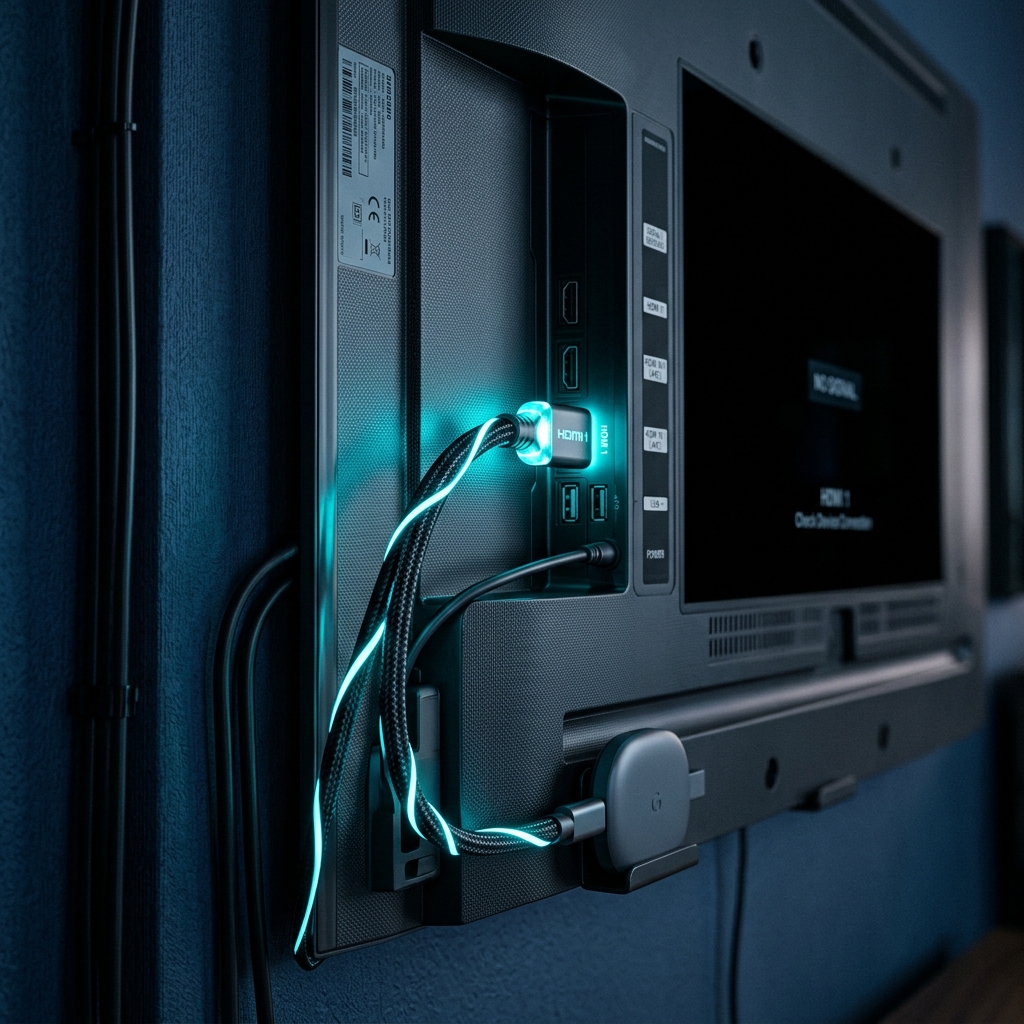 HDMI and display troubleshooting for an IPTV black screen
5. Check the TV Input/Source
Sometimes the simplest explanation is the correct one: the TV may simply be displaying the wrong input, or your device might have gone into sleep mode while passing background audio.
Confirm that the television is connected to the exact HDMI input being used by your Firestick, Android TV Box, or Apple TV.
6. Check Video Resolution Settings
Incompatible display settings can sometimes create video problems where the audio plays but the TV cannot process the visual signal.
You should verify your device's:
- Resolution (e.g., 1080p, 4K)
- Refresh rate (e.g., 50Hz, 60Hz)
- Automatic resolution settings
- TV capabilities
Changing the resolution will not always fix the problem, especially if the issue is app-based, but setting your device to "Auto" or a standard 1080p 60Hz is a good baseline test.
7. Check the IPTV Player's Video Settings
Some IPTV applications provide advanced video-related settings that dictate how the stream is processed.
Depending on the application, you may find options related to:
- Hardware acceleration
- Decoder type
- Video output method
- Playback engine (e.g., VLC, ExoPlayer)
- Compatibility mode
If you find these settings in your app's menu, try toggling them to see if the video stream returns.
8. Try Hardware and Software Decoding
The basic difference between decoding methods is crucial:
Hardware decoding uses your device's built-in physical graphics chip to process the video. It is generally faster and smoother but strictly limited to the formats your device's chip understands.
Software decoding uses the app and the device's main processor (CPU) to decode the video. It is more flexible and can play almost any format, but it requires more processing power and can sometimes lag.
One decoding mode may work better than another depending on the device, application, and stream. Neither mode is universally better. If your IPTV player supports decoder settings, test the available options (Hardware, Software, or Auto) one at a time.
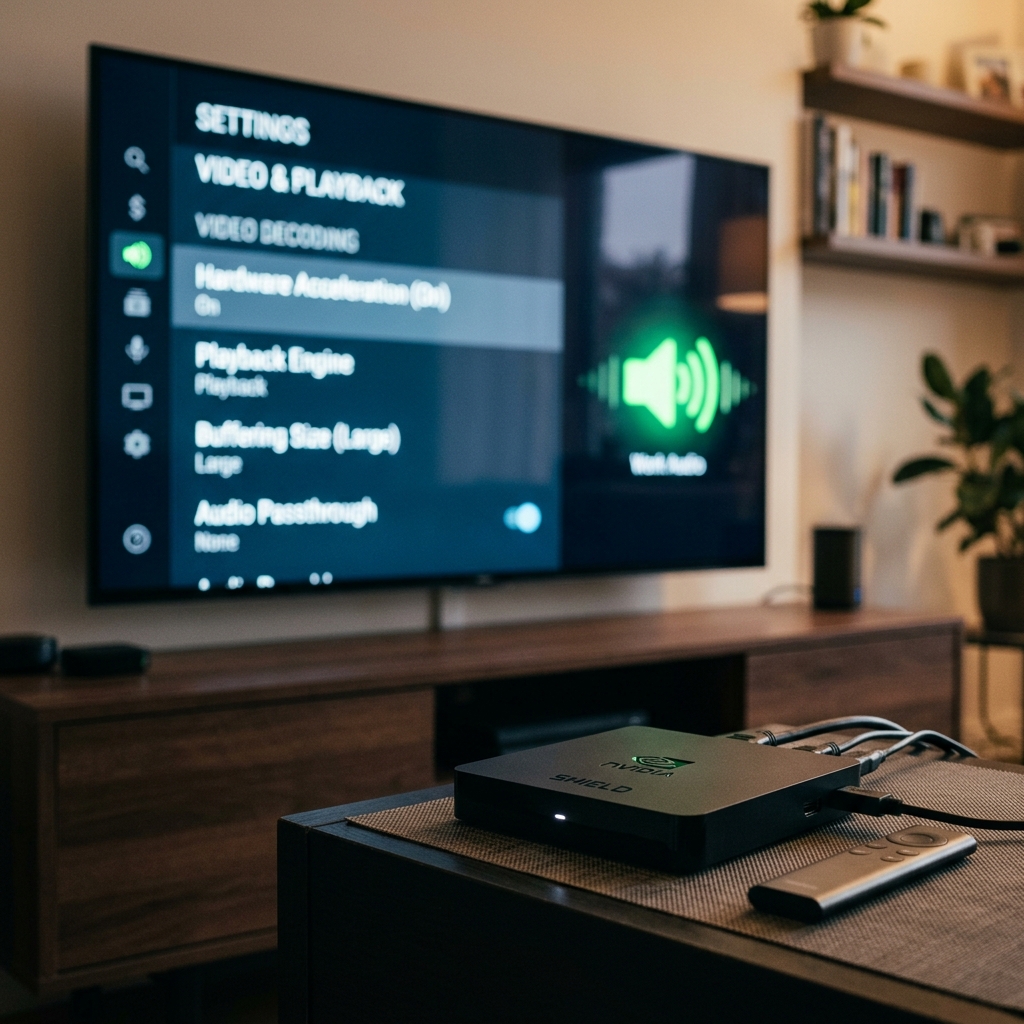 IPTV player and video decoder troubleshooting on a streaming device
9. Update the IPTV Application
An outdated IPTV player can sometimes have compatibility or playback problems, especially if the provider recently upgraded their server codecs.
We highly suggest:
- Checking for updates in your app store.
- Installing the latest compatible version.
- Restarting the app completely after updating.
10. Update Your Streaming Device
It's not just the app—the operating system itself handles the video processing. Discuss checking for:
- Smart TV firmware updates
- Fire TV software updates
- Android TV system updates
- Mobile operating-system updates
Compatibility can change rapidly as applications and operating systems are updated, so keeping everything on the latest version ensures maximum stability.
11. Check Whether the Device Supports the Video Format
IPTV streams can use different video codecs (like H.264, H.265/HEVC) and formats.
A device may be able to decode the audio track (like AAC or MP3) with ease, while having difficulty decoding a high-efficiency video portion (like an HEVC 4K stream). If your TV or streaming stick is older, it may simply lack the hardware required to show the picture for that specific high-end stream.
12. Test Another IPTV Player
The problem may come from the current IPTV application rather than the IPTV service itself. Some apps handle specific streams poorly.
If your provider supports multiple compatible players, testing another supported player can help isolate the problem. If the video works in a different app, you know your original app was the culprit.
13. Test Another Channel
As mentioned earlier, different channels may use different stream configurations.
If one channel works normally while another has audio but no video, the issue may be stream-specific. It's perfectly normal for a provider to source channels from different uplinks, which means codec compatibility can vary from channel to channel.
14. Check VOD Playback
If your service provides Video on Demand (VOD), try testing a movie or series.
This simple test can help determine whether the issue affects:
- Live TV only
- VOD only
- All video playback across the entire app
If VOD works flawlessly but Live TV has no picture, the issue is strictly with the live streaming protocols. You can view our FreeGoTV plans to see the massive VOD options we offer.
15. Check Your Internet Connection
Video playback depends on a stable connection. While audio requires very little bandwidth, high-quality video requires a lot. If your internet is struggling, the video might drop out while the audio continues.
Discuss and check:
- Wi-Fi stability
- Ethernet connections
- Network congestion
- Other devices using bandwidth
- Router performance
However, do not automatically blame internet speed when audio works—the symptom is equally likely to be related to decoding or display issues.
16. Restart Your Router
Restarting the router can resolve temporary connection issues, clear cached DNS settings, and give your device a fresh IP routing path to the IPTV servers.
Simply unplug the router, wait 30 seconds, and plug it back in.
17. Clear the IPTV App Cache
Corrupted or outdated cached data can sometimes affect application behavior, leading to blank screens.
You can usually find this in your device settings under Apps > [Your IPTV App] > Clear Cache. Note that menus differ by device. Do not select "Clear Data" unless absolutely necessary, as this can remove your settings and login information.
18. Check Your TV Picture Settings
While rare, users should verify their TV picture settings to ensure the screen isn't being artificially darkened or disabled. Check:
- Brightness
- Picture mode
- Screen settings
- Input settings
- Display configuration
The goal here is simply to rule out a localized display configuration issue.
19. Test the IPTV Service on Another Compatible Device
This is a critically important diagnostic step.
If the stream works on another device (like your smartphone): → The original device or application is responsible.
If the same problem happens everywhere: → Investigate the stream, account, playlist, or provider.
If you are looking for compatible hardware, check out our supported devices section to ensure you're using optimal equipment.
20. Contact Your IPTV Provider
When does contacting the provider make sense? You should contact support if:
- Multiple channels have the same problem.
- Multiple compatible devices have the same problem.
- Login and subscription information are correct.
- Other troubleshooting steps did not resolve the issue.
- The problem appears to be server-side or stream-side.
If you are a FreeGoTV subscriber and need assistance, you can always reach out to our dedicated contact support team for fast help. You can also check our IPTV FAQ for more instant answers.
QUICK TROUBLESHOOTING CHECKLIST
- Test another channel.
- Restart IPTV app.
- Restart device.
- Check HDMI.
- Check TV input.
- Check resolution.
- Check IPTV player settings.
- Test hardware/software decoding.
- Update IPTV app.
- Update device.
- Check video format compatibility.
- Try another IPTV player.
- Test VOD.
- Check internet connection.
- Restart router.
- Clear app cache.
- Check TV picture settings.
- Test another compatible device.
- Contact provider if necessary.
WHY DOES IPTV HAVE SOUND BUT NO PICTURE?
In summary, the most likely categories for this issue include:
- Video decoding issue (Hardware vs. Software).
- IPTV player problem (App bug).
- Device compatibility issue (Unsupported codec).
- HDMI/display problem (Loose cable).
- Resolution mismatch (Outputting a signal the TV can't display).
- Stream-specific issue (The broadcast itself is flawed).
- Outdated software (Needs a firmware update).
- Application configuration problem (Wrong playback engine selected).
No single cause is always responsible, which is why testing sequentially is so important.
FREEGOTV SECTION
Premium FreeGoTV Streaming — Save 61% Today
Unlock crystal-clear HD/4K streaming, advanced EPG, and zero buffering. Get our Ultimate 12-month plan for just $69.99.
- Premium Antifreeze
- Instant Setup
Using FreeGoTV on Compatible Devices
If you are experiencing this issue while using the FreeGoTV platform, you should first determine whether the problem is:
- Device-specific
- Application-specific
- Channel-specific
- Network-related
- Service-related
We encourage users to test another compatible device or player where appropriate. By choosing the right supported devices, you can minimize codec and playback issues entirely. With our premium FreeGoTV plans, you gain access to high-quality streams optimized for modern hardware.
Final Thoughts
Troubleshooting a black screen with working audio requires a process of elimination.
The most useful diagnostic sequence is: Channel → App → Device → Display → Decoder → Network → Provider
By following these steps, you can quickly identify the root cause. With a premium provider like FreeGoTV, you can expect high reliability and extensive compatibility across a wide range of devices, ensuring you spend more time watching and less time troubleshooting.