IPTV on Multiple Devices: How Multi-Screen Streaming Works
Premium FreeGoTV Streaming — Save 61% Today
Unlock crystal-clear HD/4K streaming, advanced EPG, and zero buffering. Get our Ultimate 12-month plan for just $69.99.
- Premium Antifreeze
- Instant Setup
IPTV on Multiple Devices: How Multi-Screen Streaming Works
Introduction
In today's connected household, a single television is rarely enough. Family members want to watch different shows at the same time, or perhaps you want to start a movie in the living room and finish it in the bedroom. This is where IPTV on multiple devices becomes incredibly valuable.
Multi-screen streaming allows you to expand your entertainment system beyond the traditional single set-top box. However, because IPTV relies on internet data rather than a physical cable connection, streaming across multiple devices introduces new rules, bandwidth requirements, and subscription limits.
In this guide, we will break down exactly how multi-device streaming works, what you need to look out for, and how you can seamlessly set up the FreeGoTV platform or other IPTV services on every screen in your house.
What Does IPTV on Multiple Devices Mean?
At its core, multi-device IPTV simply means accessing your IPTV subscription on more than one hardware device.
However, it is vital to clarify the difference between two concepts:
1. Using IPTV on several devices (Device Registration) This means you have the IPTV application installed and your account logged in on your living room Smart TV, your bedroom Firestick, and your smartphone. You can watch on any of these devices—just not at the exact same time.
2. Watching different streams simultaneously (Active Connections) This means you are watching a sports game on the living room TV while someone else is watching a movie on a tablet at the exact same time. This requires your subscription to allow multiple simultaneous active connections.
Can You Use IPTV on Multiple Devices?
The short answer is yes, but the rules are determined entirely by your IPTV provider and your specific subscription plan.
Not all IPTV services are created equal. Some providers lock an account to a specific IP address or a single MAC address (the physical identifier of a device), meaning you can only ever watch on that one specific television.
Modern, flexible providers usually use account-based authentication (username and password), allowing you to install the app on as many devices as you want. However, they will still strictly control the number of simultaneous streams allowed under your plan. Always check your IPTV pricing and plans to confirm your connection limits.
How Does Multi-Screen IPTV Streaming Work?
To understand why providers limit connections, it helps to know the basic process of how multi-screen IPTV works:
- IPTV Subscription/Account: You sign up and receive login credentials.
- Compatible IPTV Application: You install a player app on your Smart TV, Firestick, or phone.
- Internet Connection: The device connects to your local network.
- Device Authentication: When you open the app, it sends a request to the IPTV server with your credentials.
- Stream Request: You select a channel. The server verifies that you haven't exceeded your allowed active connections.
- Video Delivery: If approved, the server begins sending the heavy video data packets to your device.
Because sending high-quality video data is incredibly expensive for the server, providers must limit how many streams one account can request simultaneously. Otherwise, one user could share their password with fifty friends and overload the system.
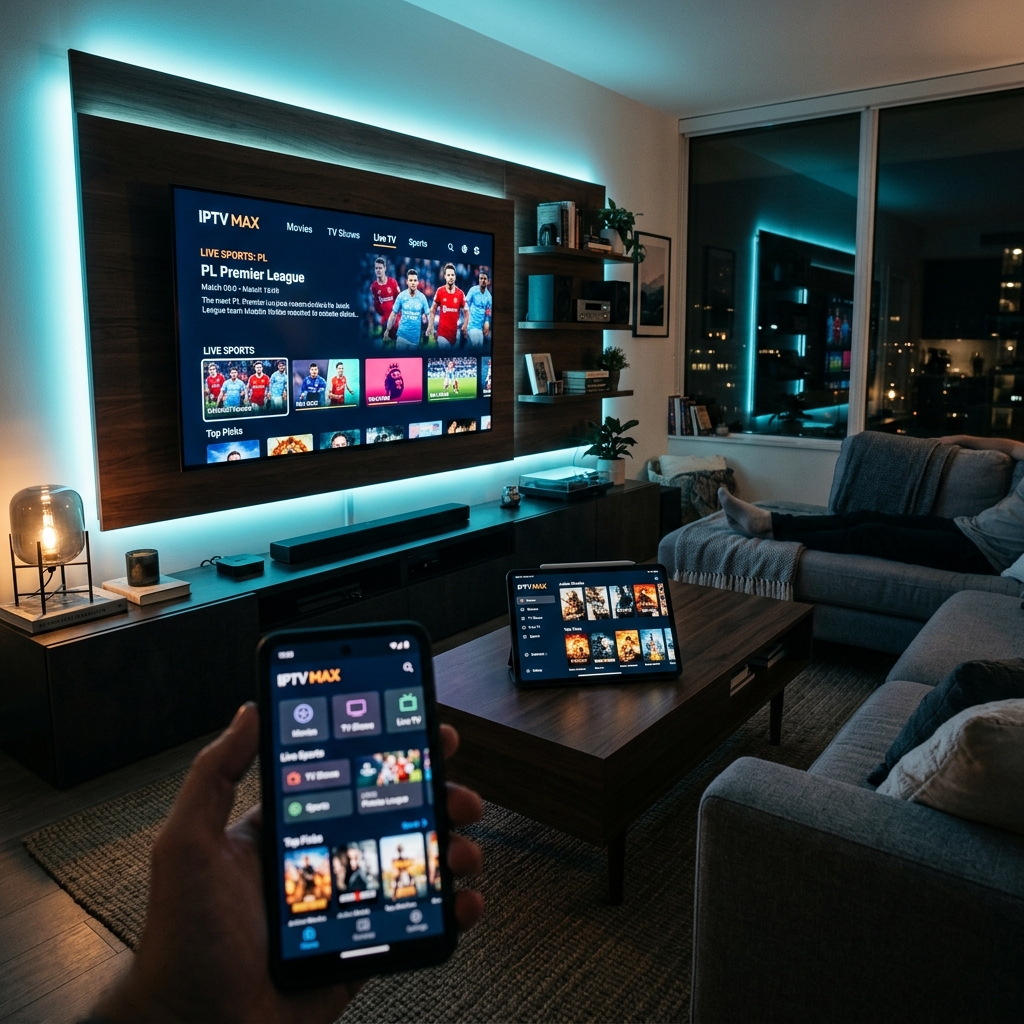
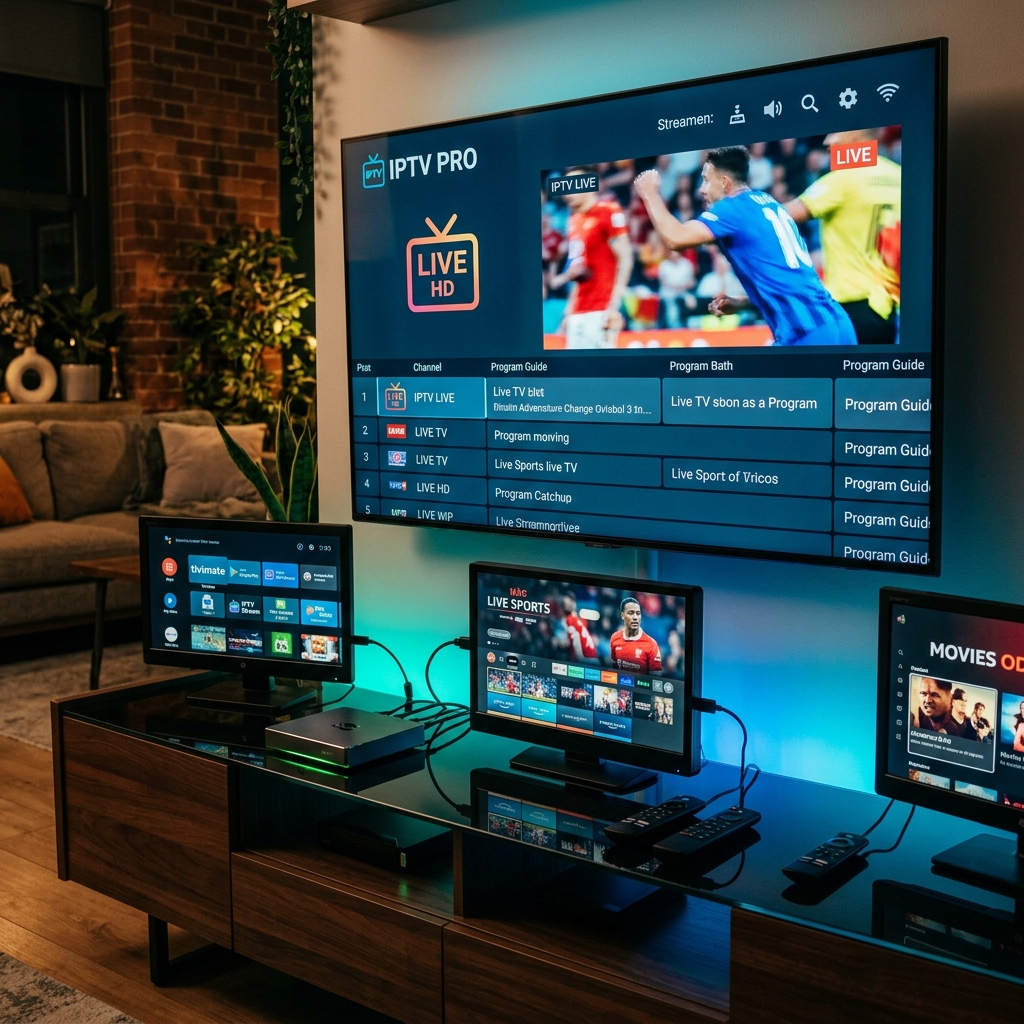 Multi-screen IPTV setup with Smart TV and streaming devices
How Many Devices Can Use IPTV at the Same Time?
There is no universal number. The allowed number of simultaneous streams depends exclusively on the service and the plan you purchase.
- A basic plan typically allows 1 connection.
- Mid-tier plans often allow 2 connections.
- Premium family plans might allow 3 to 5 connections.
For example, many users choose to upgrade their plan simply to avoid conflicts when one person wants to watch the news and another wants to watch a movie.
IPTV on Two TVs
One of the most common setups is watching IPTV on two TVs within the same house.
Practical scenarios include:
- Living Room Smart TV + Bedroom Smart TV
- Living Room Smart TV + Basement Firestick
- Android TV Box + Apple TV
Before attempting simultaneous playback on two TVs, ensure:
- Your subscription allows at least 2 connections.
- Your home internet is fast enough to handle two streams at once.
- You are not accidentally leaving the IPTV app running in the background on one TV while trying to watch on another.
IPTV on a TV and Smartphone
Using IPTV on a TV and a smartphone is a fantastic way to take your entertainment on the go. You might watch the morning news on your TV and then continue watching a live sports match on your phone during your commute.
However, be aware of IP locks. Some strict providers lock your account to your home Wi-Fi IP address. If you try to use your smartphone on a cellular data network (which has a different IP address), the stream will be blocked. Flexible providers allow you to watch from any location, provided you respect the simultaneous connection limit.
Premium FreeGoTV Streaming — Save 61% Today
Unlock crystal-clear HD/4K streaming, advanced EPG, and zero buffering. Get our Ultimate 12-month plan for just $69.99.
- Premium Antifreeze
- Instant Setup
IPTV on TV, Firestick and Android TV Box
Can different device types coexist on the same account? Absolutely.
You can easily have the Smarters app on your Android TV Box and TiviMate on your Firestick. The IPTV server does not care which application or device type you use, as long as the application supports the standard Xtream Codes or M3U playlist format.
Ensure that whichever devices you choose, they are powerful enough to decode the video streams smoothly. Check our guide on IPTV Supported Devices for hardware recommendations.
Does Multi-Device IPTV Require Faster Internet?
Yes. Each simultaneous stream multiplies your bandwidth requirements.
If you are just registering multiple devices but only watching one at a time, your internet speed requirements do not change. But if you are actively streaming simultaneously, the math is simple:
- One HD stream: ~10 Mbps required.
- Two simultaneous HD streams: ~20 Mbps required.
- One 4K stream: ~25-30 Mbps required.
- One 4K stream + One HD stream: ~40 Mbps required.
If you don't have enough bandwidth, both screens will start stuttering. For a deep dive into internet requirements and connection issues, read our guide on why IPTV channels are not loading.
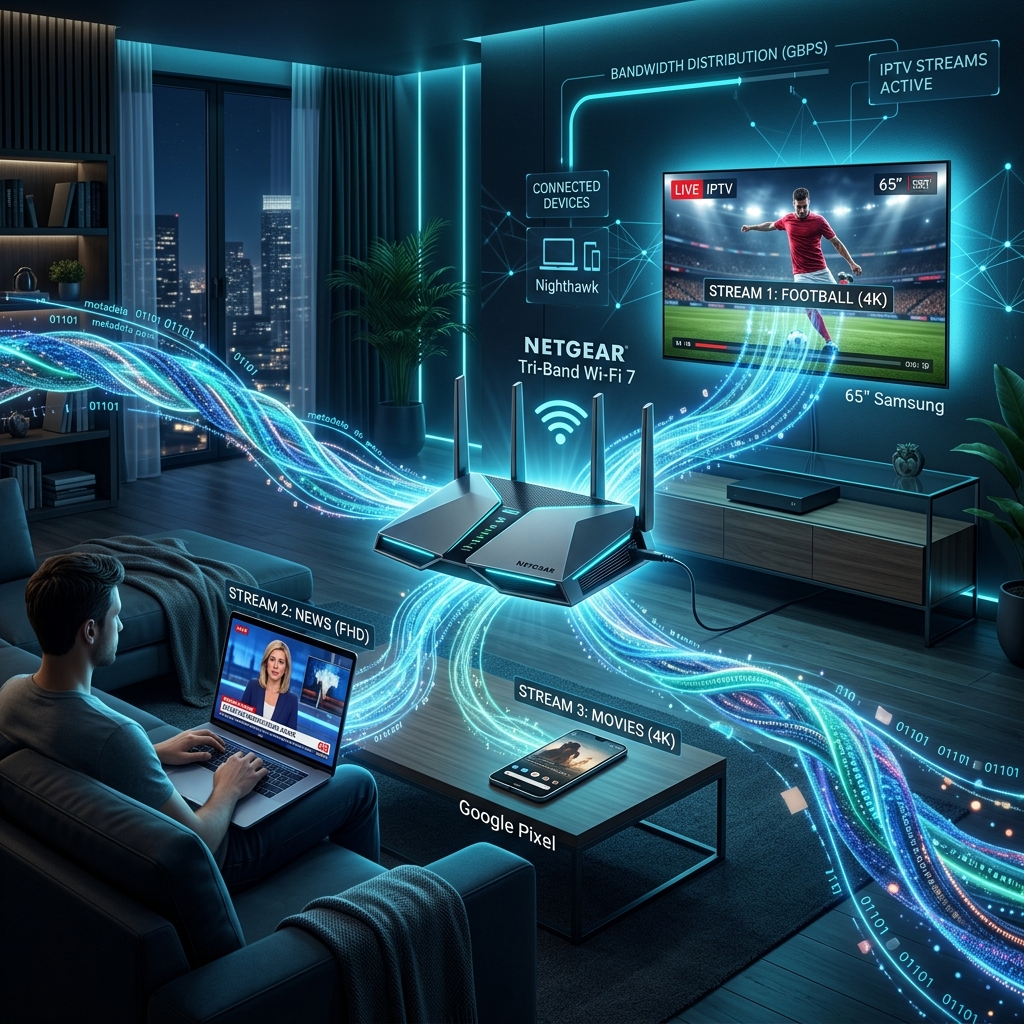 Multiple IPTV streams using network bandwidth across several devices
How to Improve Multi-Screen IPTV Performance
If you want to run multiple streams in the same house smoothly, network management is key.
- Use Ethernet where practical: Hardwire your main living room TV directly to the router to free up wireless bandwidth for your other devices.
- Use 5 GHz Wi-Fi: Ensure wireless streaming sticks (like Firesticks) are connected to the 5 GHz band, which can handle much more data than 2.4 GHz.
- Check Router Placement: A router hidden in a closet will struggle to reach a bedroom TV.
- Reduce Network Congestion: Don't download massive game updates while trying to stream two 4K movies.
- Test Connection Stability: Use a speed testing app on each individual device.
If you are experiencing severe buffering despite having fast internet, check out our dedicated guide on Fixing 4K IPTV Buffering.
Common Problems When Using IPTV on Multiple Devices
When introducing multiple screens, a few common problems can pop up:
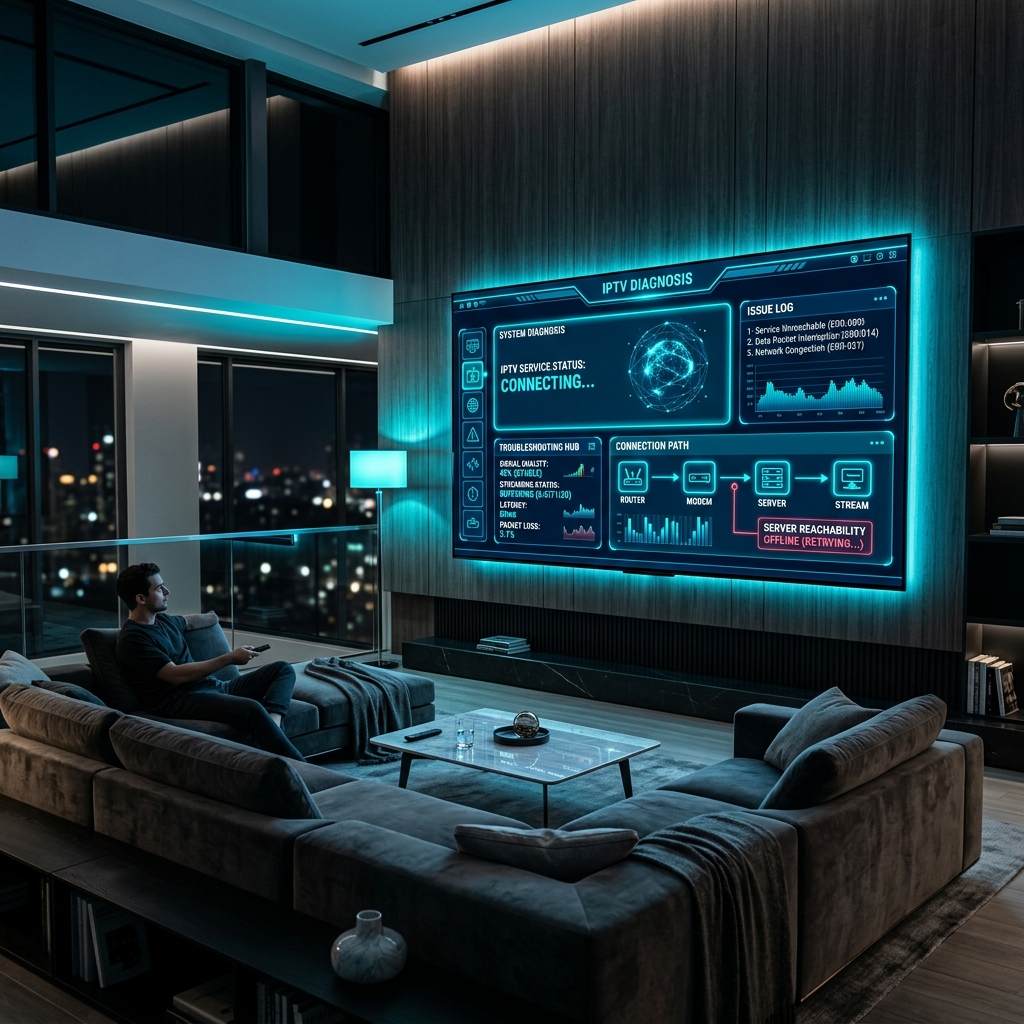
Login or connection errors
If you receive an "Invalid Details" or "Connection Timeout" error on your second device, you have likely hit your connection limit. The server is actively blocking the second request because the first device is still streaming.
One device works while another does not
If the living room TV plays perfectly but the bedroom TV has sound with a black screen, the issue is not the subscription. The bedroom TV is likely experiencing an app compatibility or decoding issue. We cover this specifically in our IPTV Sound but No Picture guide.
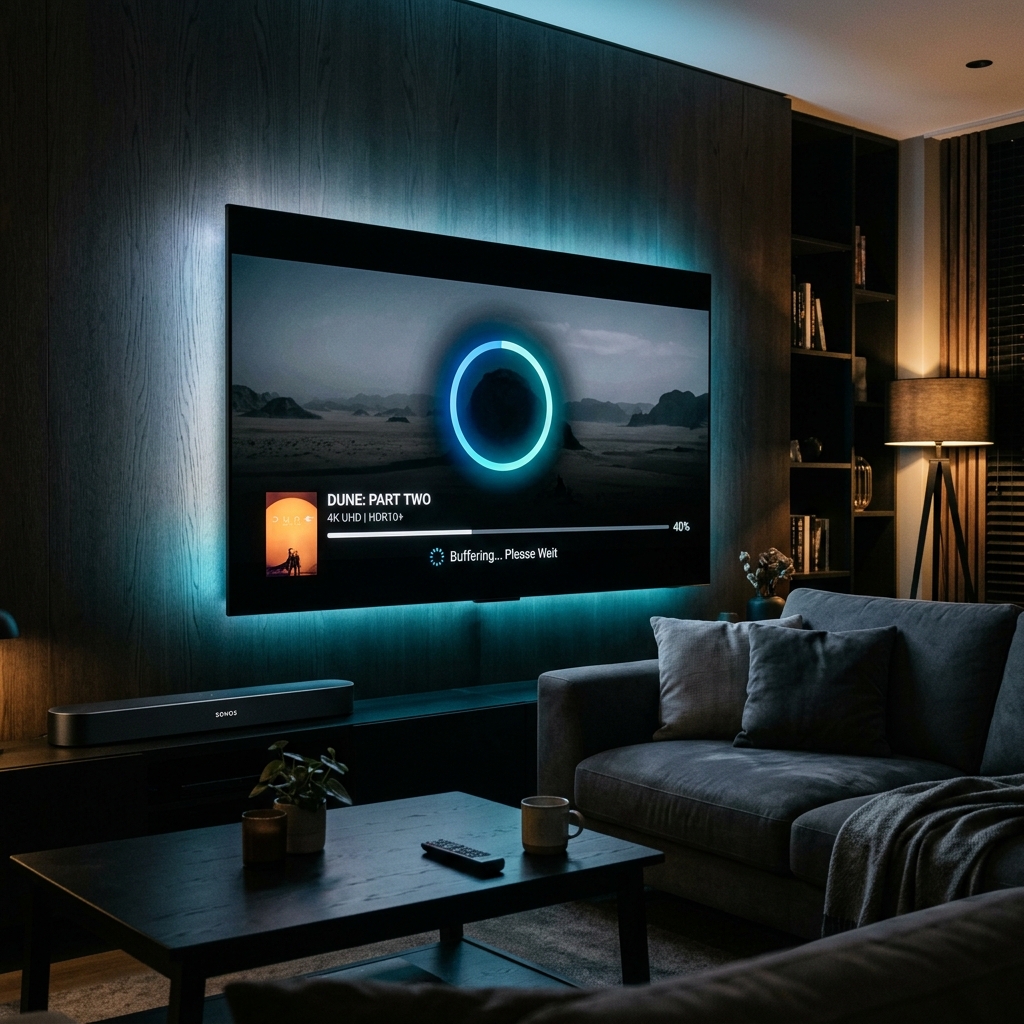
Buffering on multiple screens
If both screens start buffering simultaneously, you have almost certainly exhausted your local internet bandwidth or overwhelmed your router's processing capacity.
Channels stop when another device starts streaming
If your TV stream suddenly freezes the exact moment you open the IPTV app on your phone, you only have a 1-connection plan. The server kicked the first device off to authorize the new request.
How to Troubleshoot Multi-Device IPTV
If your multi-screen setup isn't working as expected, follow this step-by-step process:
- Check your subscription: Confirm exactly how many simultaneous connections your plan allows.
- Confirm credentials: Ensure you haven't made a typo on the second device.
- Check each internet connection: Run a speed test on both TVs.
- Test one device at a time: Turn off device A and see if device B works. If it does, the account is fine.
- Test simultaneous playback: Turn on device A, then turn on device B. If one stops, you have hit your limit.
- Restart affected devices: Clear temporary hardware glitches.
- Restart the router: Clear network congestion.
- Update IPTV applications: Ensure both devices run the latest software versions.
- Contact support: If you still face unexplained limits.
How to Choose an IPTV Plan for Multiple Devices
If multi-screen streaming is a priority for your household, you must choose your provider carefully.
Always look for:
- Clear simultaneous connection rules: The provider should explicitly state if you get 1, 2, or 3 connections.
- Account-based logins: Avoid providers that lock you to a single MAC address, as this makes switching devices impossible.
- No strict IP locks: Ensure the service allows you to use your phone on mobile data while your TV runs on home Wi-Fi.
- Responsive customer support: If your connections get "stuck" on the server, you need support to reset them.
Using FreeGoTV on Multiple Devices
At FreeGoTV, we understand that modern households require flexibility. When you explore our IPTV plans from FreeGoTV, you will find clear, transparent rules regarding simultaneous connections.
Whether you are looking to stream on a Smart TV in the living room, a Firestick in the bedroom, or a smartphone on the train, the FreeGoTV IPTV service supports a vast array of devices.
If you ever encounter an issue sharing your streams across your home, our dedicated Customer Support team is ready to assist. Be sure to check out our FAQ page for instant answers on configuring your favorite apps.
Final Thoughts
Watching IPTV on multiple devices is the ultimate way to maximize your entertainment value. By understanding the difference between device registration and active connections, and by ensuring your home internet can handle the load, you can create a seamless multi-screen experience. Always verify your subscription limits, optimize your home network, and choose a premium provider that supports your household's digital lifestyle.