How to Set Up IPTV on Firestick in 2026: Complete Step-by-Step Guide
How to Set Up IPTV on Firestick in 2026: Complete Step-by-Step Guide
Introduction
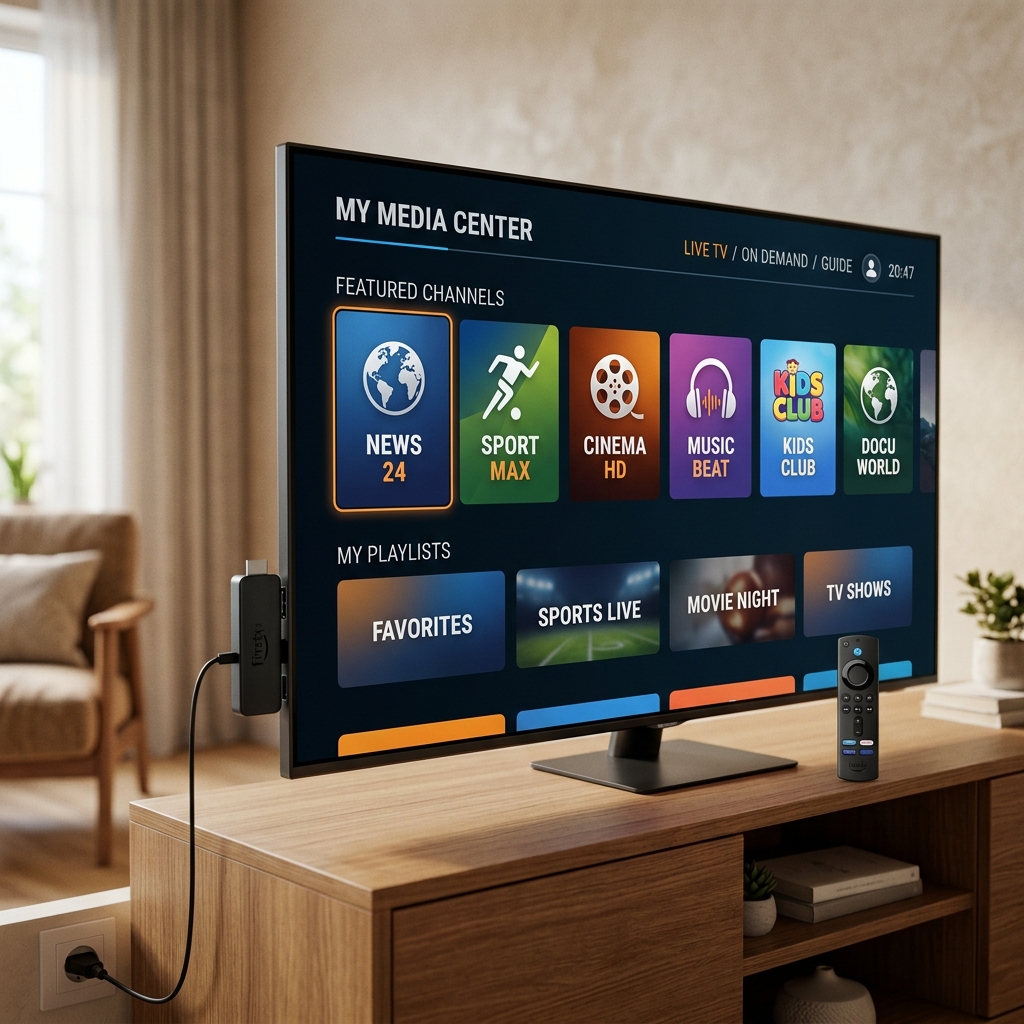
If there is one streaming device that has completely revolutionized the way we consume television in 2026, it is the Amazon Fire TV Stick. Known affectionately as the "Firestick," this tiny, affordable device plugs directly into your TV and transforms it into a powerful entertainment hub.
Because the Firestick runs on Fire OS—a highly capable operating system based on Android—it is incredibly flexible. This flexibility is exactly why it has become the most popular piece of hardware in the world for streaming IPTV.
However, setting up a new Firestick and getting it ready for live TV can be slightly intimidating for beginners. What exactly is an IPTV player? How do you install one? Where do you input your subscription details?
In this comprehensive, step-by-step guide, we are going to walk you through the entire process from start to finish. Whether you are using a premium service like FreeGoTV IPTV or exploring other options, we will show you how to physically connect your device, get it onto your Wi-Fi network, install the right software, and optimize your connection for flawless 4K streaming.
Quick Answer: How to Set Up IPTV on Firestick
Don't have time to read the entire guide? Here is a quick overview of the setup process:
- Connect Firestick to TV: Plug the device into an available HDMI port and connect it to a power outlet using the included adapter.
- Connect to Wi-Fi: Turn on your TV, switch to the correct HDMI input, and select your home network during the initial setup screen.
- Sign into Amazon: Log in using an existing Amazon account (or create a new one).
- Install an IPTV player: Navigate to the Appstore or use the Search function to download a compatible IPTV player (such as TiviMate or Smarters).
- Open the player: Launch the newly installed application.
- Enter login details: Input the authorized credentials (M3U or Xtream Codes API) provided by your IPTV service.
- Test playback: Allow the Electronic Program Guide (EPG) to download and test a live channel to verify everything is working.
Note: Exact menu names and navigation options may vary slightly depending on your specific version of Fire OS and the generation of your Firestick.
What You Need Before Setting Up IPTV on Firestick
Before you begin the installation process, gather all the necessary hardware and information. Attempting to set up your device without having everything ready can lead to frustration.
Here is exactly what you need:
- Amazon Fire TV Stick: Any model from the last few years (Firestick Lite, Firestick 4K, or Fire TV Cube) will work perfectly.
- TV with HDMI: Your television must have an available HDMI input port.
- Power adapter and cable: Always use the official power adapter supplied by Amazon.
- Amazon account: You cannot download apps on a Firestick without being logged into an Amazon account.
- Internet connection: A stable home network (Wi-Fi or an Ethernet adapter setup).
- Wi-Fi password: Have your network password ready.
- Compatible IPTV player: Software you will download directly on the device.
- Authorized IPTV service credentials: You must have an active subscription (like FreeGoTV) that has provided you with a Username/Password or an M3U URL.
Important: Do not share your authorized IPTV credentials with anyone, and never enter them into suspicious, unverified websites.
Step 1: Connect Your Firestick to Your TV
The physical installation of the Firestick is designed to be as simple as possible.
- Plug the Firestick into your TV: Locate an empty HDMI port on the back or side of your television. Plug the Firestick directly into this port. If it is a tight fit, use the small HDMI extender cable included in the box.
- Connect the power cable: Plug the micro-USB (or USB-C on newer models) cable into the side of the Firestick.
- Use the power adapter: Plug the other end of the USB cable into the supplied Amazon power adapter, and plug that adapter directly into a wall outlet.
- Amazon explicitly recommends against plugging the USB cable into the TV's USB port for power. TV USB ports often do not supply enough consistent voltage, which can cause the Firestick to randomly reboot or run slowly during high-intensity 4K streaming.
- Turn on the TV: Power up your television.
- Select the correct HDMI input: Use your original TV remote (not the Firestick remote) to change the input/source to the specific HDMI port you used (e.g., HDMI 2).
Step 2: Pair the Firestick Remote
Once the Firestick boots up, you should see the Fire TV logo. Your next step is to pair the remote control so you can navigate the menus.
- Insert batteries: Slide the back cover off the Amazon remote and insert the included AAA batteries.
- Wait for automatic pairing: In most cases, the remote will automatically pair with the Firestick within 10 to 15 seconds. You will see an on-screen prompt instructing you to press the "Play/Pause" button to begin.
- Manual pairing (if needed): If the remote does not pair automatically, follow Amazon's standard pairing procedure: Press and hold the Home button on the remote for about 10 seconds until the amber light on the remote begins to flash rapidly.
Once paired, you will use this remote for the remainder of the setup.
Step 3: Connect Firestick to Wi-Fi
Your Firestick needs an internet connection to function. The setup wizard will automatically scan for available wireless networks.
- Select your network: Choose your home Wi-Fi network from the list of available options.
- Enter your password: Use the remote and the on-screen keyboard to carefully type in your Wi-Fi password.
- Connect: Click "Connect" and wait for the "Connection Successful" message.
Should You Choose 2.4 GHz or 5 GHz?
If your router broadcasts two networks (often labeled "HomeNetwork" and "HomeNetwork_5G"), choosing the right one is critical for IPTV performance.
- If your router is in the same room as the TV, connect to the 5 GHz network. It is significantly faster and handles large video streams much better.
- If your router is far away and the signal has to pass through multiple walls, connect to the 2.4 GHz network, as it provides a longer range.
For more detailed information on maximizing your network for streaming, refer to our comprehensive guide: What Internet Speed Do You Need for IPTV in 2026?
Step 4: Sign In to Your Amazon Account
Because the Firestick utilizes the Amazon Appstore, you must register the device to an Amazon account.
- New or Existing Account: If you already shop on Amazon, select "I already have an Amazon account." If not, choose "I am new to Amazon" to create one.
- Sign In Method: Amazon currently offers multiple ways to sign in:
- QR Code: You can scan the QR code on the TV screen with your smartphone camera, which will open the Amazon login page on your phone.
- Activation Code: The screen will display a web address (like amazon.com/code) and a short activation code. Go to that address on your phone or computer, log in, and type in the code.
- Complete Setup: Once registered, follow the remaining on-screen prompts. You can choose whether to save Wi-Fi passwords to your Amazon account and whether to enable parental controls.
Step 5: Check for Fire TV Software Updates
Before installing any applications, it is highly recommended to ensure your Fire OS is completely up to date.
Updating your device provides several benefits:
- Fixes known security vulnerabilities.
- Improves overall menu performance and speed.
- Ensures compatibility with the latest versions of modern IPTV apps.
- Resolves minor Wi-Fi dropping issues.
The device often updates itself during the initial setup, but you can manually check by going to Settings (gear icon) > My Fire TV > About > Check for Updates.
Step 6: Install a Compatible IPTV Player
Now that the hardware is ready, it is time to install the software.
An IPTV player is an application used to organize and play your streams. Important: An IPTV player does NOT provide any television channels, movies, or shows on its own. It is simply a media player. You must input your subscription credentials to make it work.
While Fire OS is based on Android, not every Android app is available directly in the official Amazon Appstore. You have two main categories of players:
- Official Apps: Available directly via the Fire TV Search function.
- Third-Party Apps: Require a slightly different installation method (often using an app called "Downloader").
For this guide, we recommend sticking to highly reputable, widely used applications. Avoid downloading strange APK files from unverified websites, as they can contain malware or cause your device to crash.
Premium FreeGoTV Streaming — Save 61% Today
Unlock crystal-clear HD/4K streaming, advanced EPG, and zero buffering. Get our Ultimate 12-month plan for just $69.99.
- Premium Antifreeze
- Instant Setup
Best IPTV Players for Firestick in 2026
If you are unsure which software to use, here is a quick overview of the most popular and verified IPTV players currently compatible with Fire TV.
(For a massive, detailed breakdown of every option, read our full article on the Best IPTV Players in 2026.)
1. TiviMate
- Overview: Widely considered the absolute best IPTV player ever created for television screens.
- Advantages: It looks exactly like a premium cable box interface. The Electronic Program Guide (EPG) is flawless, channel switching is lightning fast, and it handles multiple playlists beautifully.
- Limitations: The free version is heavily restricted; unlocking its true power requires purchasing TiviMate Premium.
2. IPTV Smarters / Smarters Player
- Overview: The most famous and beginner-friendly app in the world.
- Advantages: Unbelievably easy to use. It categorizes your subscription into three massive buttons: Live TV, Movies, and Series.
- Limitations: The interface is slightly older and less customizable than TiviMate.
3. XCIPTV
- Overview: A fantastic, fast alternative that works exceptionally well on Amazon hardware.
- Advantages: Excellent built-in video players (ExoPlayer and VLC) that handle high-bitrate 4K streams smoothly without crashing.
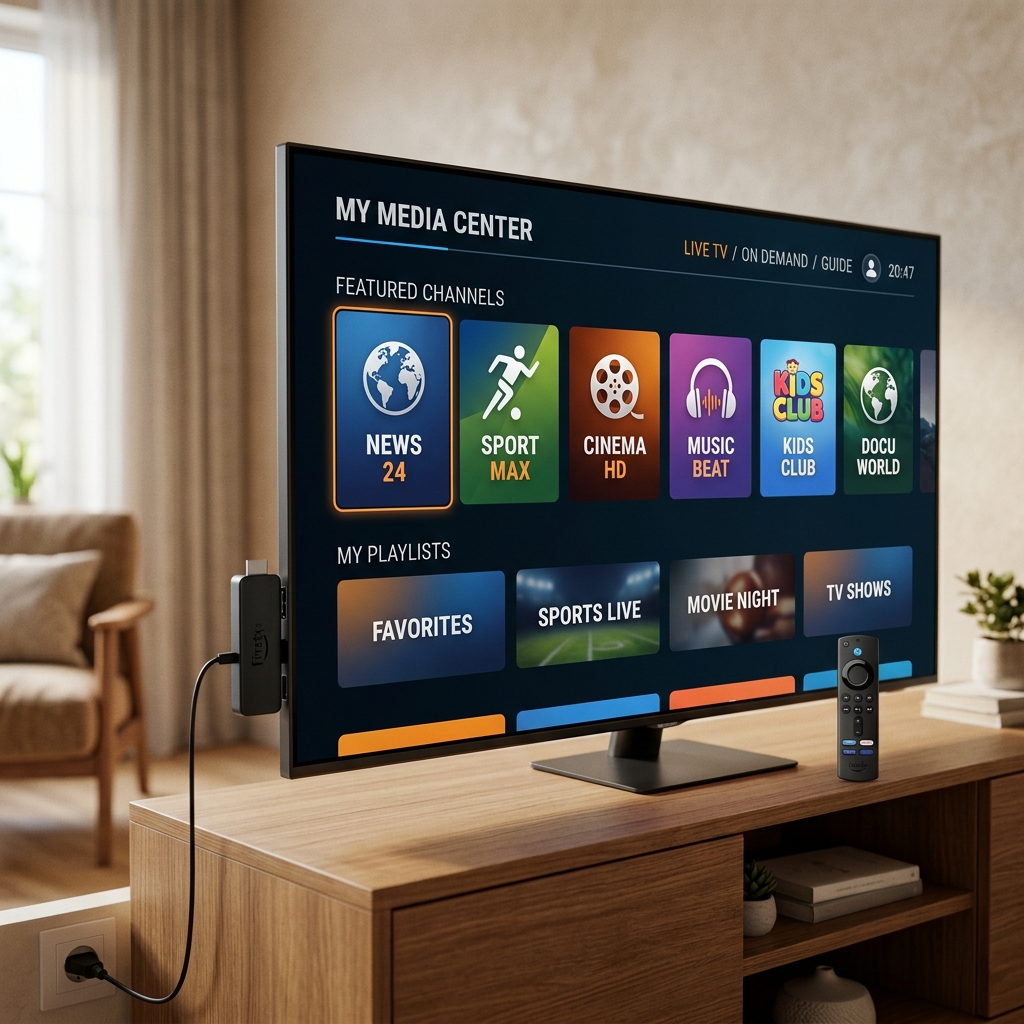
Step 7: Open Your IPTV Player
Once you have downloaded your preferred IPTV player (e.g., by searching for "Smarters Player" or your app of choice on the Fire TV home screen and clicking "Download"), it is time to launch it.
- Press the Home button on your remote.
- Navigate to the Apps icon (three squares and a plus sign) on the menu bar.
- Scroll down to find your newly installed application.
- Click the app to open it.
 IPTV player setup on Firestick with live TV and EPG
Step 8: Add Your IPTV Service
When you open the player for the first time, you will be greeted by a login or setup screen. You need to connect the player to your active IPTV subscription.
Most premium services provide you with one of two login methods:
Method A: Xtream Codes / Xtream API
This is the most modern, preferred method. It is faster and organizes your content automatically. The app will ask for:
- Name: Choose any name you want (e.g., "My Home TV").
- Username: Provided by your IPTV service (e.g., YOUR_USERNAME).
- Password: Provided by your IPTV service (e.g., YOUR_PASSWORD).
- URL / Server URL: A web address provided by your service.
Method B: M3U Playlist
This is an older method that involves entering a very long web address.
- The app will ask for a Playlist URL or M3U Link.
- You must carefully type the extremely long web address provided in your welcome email.
If given the choice, always use the Xtream Codes API method, as it allows the app to pull the Electronic Program Guide (EPG) data automatically.
How to Set Up FreeGoTV IPTV on Firestick
If you are a subscriber to FreeGoTV IPTV, connecting your account is incredibly straightforward. FreeGoTV utilizes state-of-the-art server infrastructure that is fully compatible with almost every major player on the market.
- Purchase your subscription via the FreeGoTV Pricing page.
- Check your email for your official activation details.
- Open your preferred IPTV player on your Firestick.
- Select the "Login with Xtream Codes API" option.
- Enter the exact Server URL, Username, and Password provided in your FreeGoTV welcome email.
- Click "Add User" or "Login" and wait a few moments for the FreeGoTV channel database to sync to your device.
Because our servers are highly optimized, your channel list and VOD library will populate instantly. We do not restrict you to one specific app—you are free to use whatever Fire TV software you prefer!
Step 9: Set Up the IPTV EPG
The EPG (Electronic Program Guide) is the on-screen TV guide that tells you what shows are currently airing and what is coming up next.
If you logged in using Xtream Codes API, your EPG should automatically download and populate.
If you used an M3U link, or if your EPG is missing:
- Go to the Settings menu of your IPTV player.
- Look for a section called EPG or TV Guide.
- Select Add EPG Source.
- Enter the specific EPG URL provided by your IPTV service.
- Click Update EPG.
Troubleshooting Tip: If the times on your TV guide are wrong (e.g., a 9:00 PM show says it is airing at 5:00 PM), go into the player's settings and look for a "Time Shift" or "Time Zone" offset option. Adjust it until the times match your local clock.
Step 10: Organize Your IPTV Channels
A premium service like FreeGoTV gives you access to thousands of live channels and VOD titles. Scrolling through a massive list every time you want to watch TV is exhausting. Take a few minutes to organize your player.
- Use Categories: Navigate through the pre-sorted folders (e.g., Sports, News, Entertainment, Movies).
- Add Favorites: When you find a channel you watch daily, press and hold the "Select" button on your Firestick remote (or press the "Menu" button) and choose "Add to Favorites."
- Hide Unwanted Groups: In advanced apps like TiviMate, you can go into the settings and hide entire country categories you know you will never watch, drastically speeding up menu navigation.
Step 11: Test Your IPTV Stream
You are finally ready to watch TV. Before settling in for a movie marathon, run a quick system test to ensure everything is functioning correctly.
- Live TV: Open a channel. It should load within a few seconds.
- Channel Switching: Try changing to a different channel. Note how fast the "zap" time is.
- High Definition: Open an HD or Full HD channel and check the visual clarity.
- Audio: Ensure sound is playing in sync with the video.
- VOD: Try opening a movie to ensure the on-demand servers are connecting properly.
If everything loads smoothly and looks great, congratulations! You have successfully set up IPTV on your Firestick.
What Internet Speed Do You Need for IPTV on Firestick?
A common misconception is that simply owning a Firestick guarantees flawless streaming. The reality is that your IPTV experience is entirely dependent on your internet connection.
Here is a practical summary of what you need:
- SD Content: ~5 Mbps
- HD Content: ~10-15 Mbps
- Full HD (1080p): ~15-25 Mbps
- 4K Content: ~35-50+ Mbps
It is vital to understand that stability is more important than raw speed. A fluctuating 100 Mbps connection will cause buffering, while a rock-solid, stable 30 Mbps connection will play 1080p streams flawlessly. For a deep dive into bandwidth calculations, read our full article: Internet Speed for IPTV in 2026.
Is Ethernet Better Than Wi-Fi for IPTV on Firestick?
If you are experiencing buffering on your Firestick, the very first question you should ask is how the device is connected to your network.
Wi-Fi is incredibly convenient and works very well for most users, especially if the Firestick is connected to a 5 GHz network close to the router. However, Wi-Fi is susceptible to invisible interference from walls, microwaves, and neighboring networks, which can cause random dropped packets (and thus, buffering).
Ethernet provides a physical, uninterrupted hardwire connection. Because the Firestick does not have an Ethernet port built-in, you must purchase a small Amazon Ethernet Adapter. It plugs into the side of the Firestick and allows you to run a cable directly to your router.
If you care about live sports or plan to stream heavily in 4K, an Ethernet connection is highly recommended for maximum stability.
 Improve IPTV streaming performance on Firestick
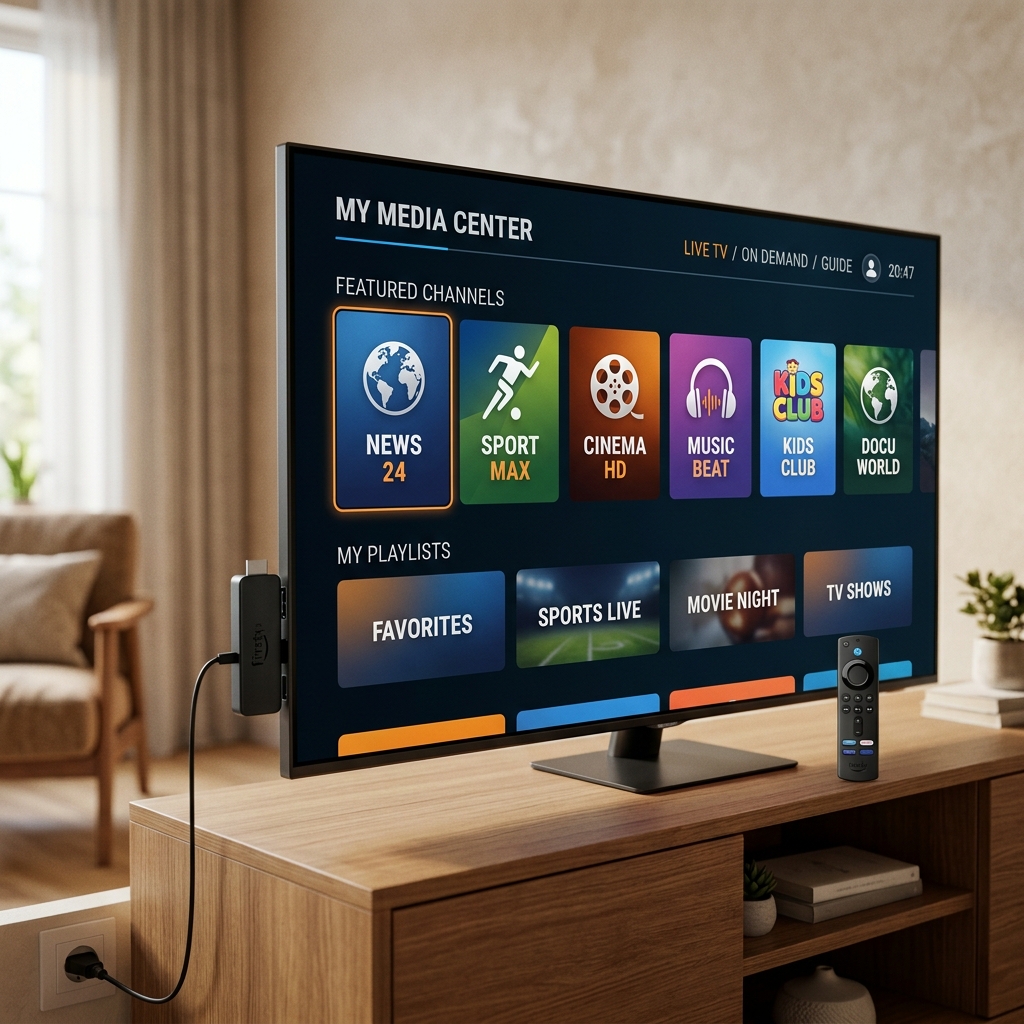
How to Improve IPTV Performance on Firestick
If your setup is complete but the performance feels sluggish or the video stutters, try these immediate fixes:
- Use a strong Wi-Fi connection: Ensure your Firestick is on the 5 GHz network.
- Move the router closer: Physical obstacles severely degrade Wi-Fi signals.
- Use Ethernet where practical: As mentioned above, hardwiring is the ultimate fix.
- Close unnecessary apps: The Firestick has limited RAM. Go to Settings > Applications > Manage Installed Applications and "Force Stop" apps you aren't using.
- Restart the Firestick: Unplug the power cable for 30 seconds, then plug it back in.
- Restart your router: This clears out network congestion.
- Keep Fire TV updated: Install the latest OS updates.
- Keep your IPTV player updated: Developers constantly release bug fixes.
- Avoid heavy downloads: Do not download massive video games on your PC while trying to watch live TV on the Firestick.
Premium FreeGoTV Streaming — Save 61% Today
Unlock crystal-clear HD/4K streaming, advanced EPG, and zero buffering. Get our Ultimate 12-month plan for just $69.99.
- Premium Antifreeze
- Instant Setup
IPTV Not Working on Firestick? Try These Fixes
Even with the perfect setup, you may occasionally run into issues. Here are the most common problems and how to solve them.
IPTV app won't open
If the app crashes immediately upon opening, it is likely out of memory. Restart your Firestick. If that fails, uninstall the app and reinstall it.
Channels won't load
Check your internet connection first. If the internet is working, your IPTV provider might be experiencing a temporary server outage. Contact their support team.
Buffering and freezing
This is almost always a network instability issue. Switch to Ethernet or move your router closer. For more advanced solutions, read our guide on fixing IPTV Buffering.
Audio but no picture
This usually means your IPTV player does not have the correct video codec to decode the stream. Try changing the player's internal settings (switch from hardware decoding to software decoding, or vice versa).
EPG not loading
Ensure your Xtream Codes URL was entered correctly. If it still fails, manually update the EPG from the app's settings menu.
Login error / Invalid credentials
Double-check your spelling. Passwords are case-sensitive. Ensure you haven't confused a capital "I" with a lowercase "l" or the number "1".
How to Free Up Storage on Firestick for IPTV Apps
The standard Amazon Fire TV Stick does not have a massive hard drive. It usually comes with around 8 GB of total internal storage, much of which is occupied by the operating system itself.
If you try to install a new IPTV player and receive a "Storage Full" error, you must clear some space:
- Go to Settings > Applications > Manage Installed Applications.
- Scroll through the list and find apps or games you no longer play.
- Select the app and click Uninstall.
- For apps you wish to keep (like YouTube or Netflix), you can select Clear Cache to remove temporary files without deleting the app itself.
Keeping at least 1 GB to 2 GB of storage free ensures your Firestick operates smoothly and has enough room to download EPG updates.
Can You Watch 4K IPTV on Firestick?
Yes, absolutely. However, achieving true 4K playback depends on several strict factors aligning perfectly:
- Fire TV Model: You must own a 4K-capable device (like the Fire TV Stick 4K or Fire TV Cube). An older, standard Firestick Lite maxes out at 1080p.
- TV Resolution: Your television must actually be a 4K display.
- IPTV Stream Quality: Your IPTV service must broadcast a true 4K source. The Firestick cannot magically upscale a blurry 720p stream into True 4K.
- Internet Connection: You need a highly stable connection, preferably over 50 Mbps, ideally hardwired via Ethernet.
If you meet all these requirements, watching live 4K events on a Firestick is a breathtaking experience. For more information, read our dedicated 4K IPTV Guide.
Can You Use IPTV on Firestick and Other Devices?
Yes! One of the massive benefits of a premium IPTV service is flexibility. You are not locked into watching only on your living room television.
You can theoretically install an IPTV player and enter your credentials on your Firestick, your bedroom Smart TV, your Android smartphone, and your iPad.
However, there is a catch: The number of devices that can stream at the exact same time depends entirely on your specific subscription package. If you purchased a single-connection plan, you cannot watch a movie in the living room while someone else watches sports in the bedroom on the same account.
To learn how to manage simultaneous streams legally and effectively, review our guide on using IPTV on Multiple Devices.
Frequently Asked Questions
Final Thoughts: Setting Up IPTV on Firestick in 2026
Setting up your Amazon Fire TV Stick for the very first time might feel like a technical project, but once you understand the basic steps, the process is incredibly straightforward.
By taking the time to physically connect the device properly, ensuring you are on a fast and stable Wi-Fi (or Ethernet) network, and choosing a premium player like TiviMate or Smarters, you lay the foundation for a flawless viewing experience. Remember that the software is only half the battle; you must pair your Firestick with a highly reliable, high-performance streaming provider.
When you use authorized, top-tier credentials from a service like FreeGoTV, your tiny Firestick transforms into a home entertainment powerhouse capable of delivering thousands of HD and 4K channels right to your living room. Ready to get started? Head over to our Pricing page, grab your subscription, and enjoy television the way it was meant to be seen!