IPTV EPG Not Working in 2026: Causes and Fixes
IPTV EPG Not Working in 2026: Causes and Fixes
Introduction
Sitting down to watch live television only to find your Electronic Program Guide completely blank, stuck, or displaying incorrect show times can be a frustrating experience. You turn on your TV, open your favorite player, and instead of seeing upcoming live sports, news schedules, or prime-time movie listings, you are greeted by "No Information," "No Data Available," or an empty timeline grid.
When experiencing IPTV EPG not working issues, many viewers assume their entire service is down. However, in almost all cases, program guide failures are independent of actual video streaming. You might discover that your live channels play perfectly in crisp high definition, while the television guide metadata fails to load.
In this comprehensive guide, we will analyze why IPTV EPG is not loading, examine the root causes of empty TV guides and incorrect program times, and provide a step-by-step troubleshooting process for Smart TVs, Firestick, Android TV, and mobile devices. Whether you are using an authorized provider like FreeGoTV or troubleshooting your player settings, this guide will help you restore full program guide functionality.
Premium FreeGoTV Streaming — Save 61% Today
Unlock crystal-clear HD/4K streaming, advanced EPG, and zero buffering. Get our Ultimate 12-month plan for just $69.99.
- Premium Antifreeze
- Instant Setup
IPTV EPG Not Working in 2026What Is IPTV EPG?
To troubleshoot program guide failures effectively, it is essential to understand how EPG data functions behind the scenes.
EPG stands for Electronic Program Guide. It is an interactive digital menu that delivers real-time program schedules, show titles, start/end times, episode descriptions, channel logos, and content ratings directly to your media player.
How EPG Data Is Delivered
Unlike traditional analog TV signals where program data was embedded directly inside the broadcast frequency, IPTV handles media streams and guide metadata through two separate data feeds:
- Video Stream Feed: Delivers the actual live video and audio packets (H.264, HEVC/H.265) from the stream server to your player.
- EPG Metadata Feed: Delivers XML-formatted schedule text (commonly XMLTV format) from an EPG server to your player's guide interface.
Because these two feeds operate independently, an EPG failure does not mean your live channels are down. Your player can easily decode live stream video even when the guide server fails to update metadata. If you are experiencing total stream loss or player crashes alongside guide issues, review our general IPTV troubleshooting guide to address underlying connection errors.
Quick Fix: What to Do When IPTV EPG Is Not Working
If your IPTV TV guide is not working and you need a quick resolution, follow this 10-point emergency action list:
- Manually Refresh the EPG: Open your IPTV player's settings menu and trigger a manual EPG update or re-sync.
- Check the EPG Source URL: Ensure your EPG source address is correctly typed without missing characters or spaces.
- Verify Device Date and Time: Ensure your streaming device has "Automatic Date & Time" enabled.
- Verify Time-Zone Settings: Check that your IPTV player's time offset matches your physical local time zone.
- Restart the IPTV Application: Force-close your streaming app completely and re-open it.
- Restart Your Streaming Device: Power cycle your Smart TV, Firestick, or Android box.
- Update the IPTV Player: Ensure your player application is updated to the latest available version.
- Reload the Playlist: Refresh or re-import your Xtream Codes or M3U playlist feed.
- Test Another Compatible Player: Install an alternative app (such as TiviMate or IBO Player) to determine if the issue is app-specific.
- Contact Your IPTV Provider: Reach out to your provider's support team if the guide server remains unresponsive after verifying your local setup.
Note: Menu names and button layouts vary across different application interfaces (e.g., TiviMate, IPTV Smarters, IBO Player).
Why Is My IPTV EPG Not Working?
Program guide errors can stem from several technical factors ranging from server synchronization delays to local device settings. Below are the primary causes behind IPTV EPG missing errors:
Incorrect or Expired EPG Source
If you manually configured an EPG URL in your application, an outdated, misspelled, or expired URL will prevent your player from retrieving XMLTV data. Even a single missing forward slash or uppercase letter mismatch can cause the request to fail.
EPG Has Not Been Refreshed
Most IPTV players update program guide data automatically every 24 to 48 hours. If your player was disconnected during a scheduled background refresh or if the local cache expired, your guide may show blank timelines until a manual refresh is executed.
Incorrect Date, Time, or Time Zone
This is the single most common reason why an IPTV EPG shows wrong time information. If your Smart TV or streaming stick is set to the wrong year, day, or time zone, the player cannot map the incoming UTC schedule data to your local clock, causing shows to display hours ahead or behind.
IPTV Player Compatibility
Different applications parse EPG data using distinct XML decoders. Some lightweight players struggle to digest massive EPG files containing schedule data for tens of thousands of channels, leading to memory timeouts or incomplete guide rendering. To find applications with superior guide rendering engines, consult our guide on the best IPTV players for Smart TV.
Playlist and EPG Mapping Problems
For program guide data to display correctly, each channel in your M3U playlist must feature a unique channel ID tag (tvg-id) that matches the corresponding ID in the EPG database file. If a provider updates channel names or reorganizes categories without updating the mapping tags, specific channels may display "No Information."
Temporary EPG Server or Data Issue
EPG servers process millions of schedule updates daily. If an upstream data provider experiences maintenance or server downtime, program guide updates will pause temporarily even while live video streams continue operating seamlessly.
Outdated IPTV App
Outdated software versions may contain bugs in their XML parsing engine or lack support for modern security protocols, causing guide fetching requests to drop silently.
Device-Specific Issues
Low storage memory or constrained RAM on older Smart TVs and Firesticks can cause the device operating system to kill background EPG fetching processes.
EPG Data Missing for Specific Channels
Sometimes your guide is 90% populated, but specific channels show "No Data Available." This occurs when the EPG provider does not maintain active schedule feeds for rare international channels, temporary pop-up event streams, or 24/7 movie channels.
Common IPTV EPG Problems and What They Mean
Understanding the visual symptom helps pinpoint the exact technical cause. Use this comparison table to identify your issue:
| Problem Symptom | Likely Cause | Recommended Action |
|---|---|---|
| EPG completely empty across all channels | Expired EPG URL, failed playlist sync, or network blocking | Force refresh EPG, check internet, or re-input Xtream Codes login |
| EPG shows wrong program times | Mismatched device time zone or incorrect player time offset | Enable Automatic Date/Time on device; adjust player EPG time shift |
| EPG stuck on old/past programs | Stale application cache or failed background refresh | Clear app cache, execute manual EPG update in player settings |
| Only a few channels have guide data | Missing tvg-id mapping or unindexed channel sources | Normal for pop-up/24-7 channels; contact provider for mapping fix |
| EPG disappears after playlist refresh | Temporary server indexing delay or corrupted local database | Wait 5 minutes for indexing to finish, or restart player application |
| EPG works on mobile but not on Smart TV | RAM memory constraints or app-specific XML parser bug | Install a dedicated TV player like IBO Player or SmartOne IPTV |
How to Fix IPTV EPG Not Working Step by Step
Follow this detailed, step-by-step diagnostic workflow to restore your electronic program guide.
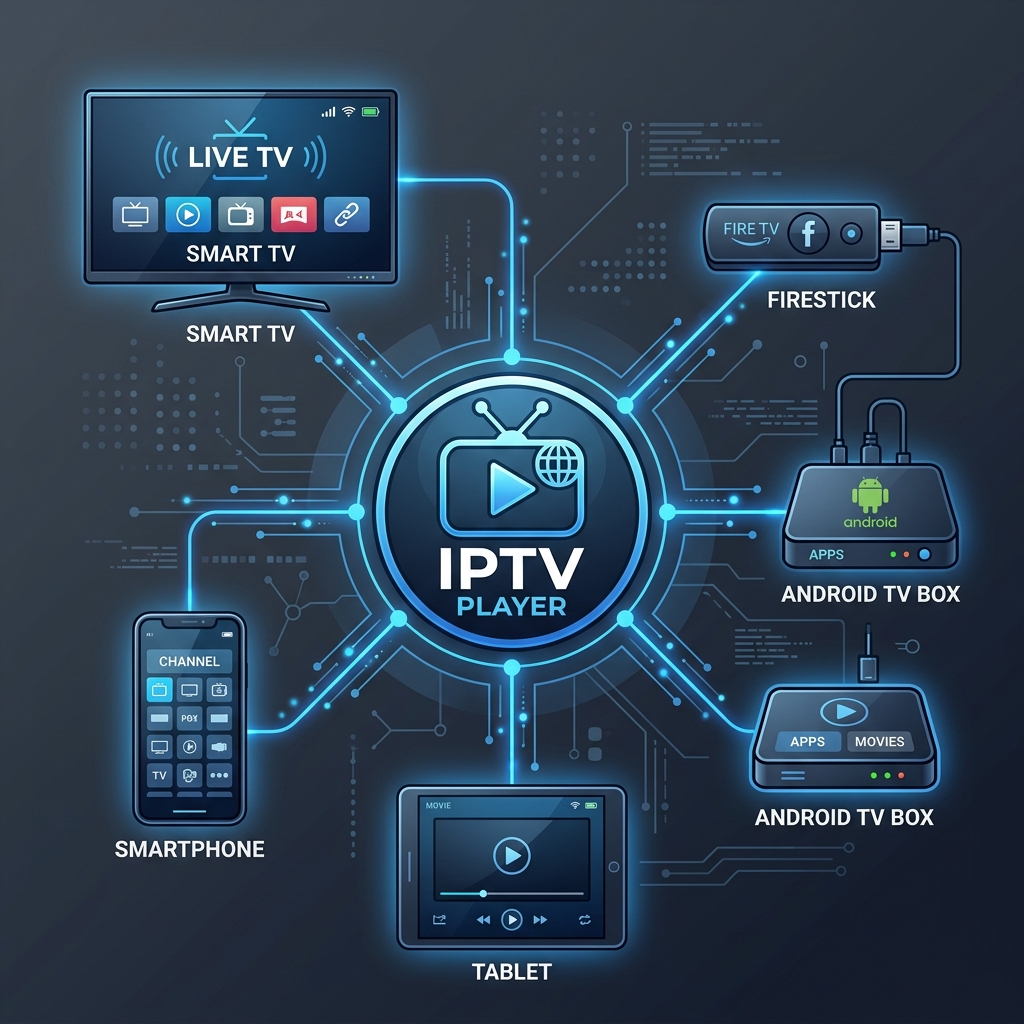 IPTV EPG Troubleshooting Guide
Step 1: Execute a Manual EPG Refresh
Navigate to your IPTV app's settings menu (often found under Settings > EPG > Refresh EPG or Update Guide). Allow the progress bar to complete 100% before exiting the menu.
Step 2: Restart the IPTV Player
Completely exit the application. On Android TV or Firestick, go to Device Settings > Applications > Installed Applications > [Your IPTV App] > Force Stop, then re-launch the app.
Step 3: Restart Your Streaming Device
Unplug your Smart TV, Firestick, or Android box from the power outlet for 30 seconds. Reconnecting power clears system RAM and re-initializes network sockets.
Step 4: Verify Automatic Date & Time Settings
Go to your streaming device's system settings (e.g., Settings > System > Date & Time). Ensure that Set Automatically is turned ON and synchronized with network time servers.
Step 5: Configure Player Time Offset (Time Shift)
If show titles appear shifted by exactly 1, 2, or 5 hours, open your player's EPG settings and locate EPG Time Shift or Time Offset. Adjust the offset (+1h, -1h, etc.) until program schedules align with your local clock.
Step 6: Verify EPG Source URL
If you entered a custom EPG link manually, double-check every character in the URL string. Ensure there are no typos, accidental spaces, or missing punctuation marks.
Step 7: Reload Your Playlist
If using Xtream Codes API login (Server URL, Username, Password), go to your playlist management menu and select Update Playlist. This fetches fresh channel indexing and EPG bindings simultaneously.
Step 8: Update Your IPTV Player
Open your device's official app store (Google Play Store, Amazon Appstore, Samsung App Store, or LG Content Store) and check for available updates for your player.
Step 9: Clear Application Cache
Over time, corrupted guide cache files can block new schedule data. Go to Device Settings > Apps > [Your IPTV App] > Clear Cache.
Important: Select Clear Cache only. Do NOT click "Clear Data" unless you are prepared to re-enter your login credentials and playlist settings.
Step 10: Test an Alternative IPTV Player
To verify whether the problem lies within your current app or your data provider, install a secondary player application (such as TiviMate, IPTV Smarters, or IBO Player) and log in with your credentials.
Step 11: Test on a Secondary Device
Log in to your subscription on a smartphone or tablet. If the EPG populates instantly on mobile but fails on your TV, the issue is isolated to your TV hardware or network connection. If streaming across multiple TVs in your home, check our guide on multi-screen IPTV streaming.
Step 12: Contact Your IPTV Service Provider
If the guide remains empty across all apps and devices despite clean network connectivity, contact your provider to check if guide maintenance is underway.
Premium FreeGoTV Streaming — Save 61% Today
Unlock crystal-clear HD/4K streaming, advanced EPG, and zero buffering. Get our Ultimate 12-month plan for just $69.99.
- Premium Antifreeze
- Instant Setup
IPTV EPG Shows the Wrong Time: How to Fix It
One of the most common issues reported by users is that the IPTV program guide is working, but the show times are completely out of sync with real-time broadcasts.
Understanding Time Offset Conflicts
EPG data feeds are created in UTC (Coordinated Universal Time) or the provider's local server time zone. Your IPTV player must convert these timestamps to your local time zone.
Diagnostic Process for Incorrect Times
- Check Local Device Clock: Ensure your TV or streaming stick shows the correct time on its home screen.
- Check System Time Zone: Confirm your device's time zone setting matches your location (e.g., Eastern Standard Time vs. Pacific Standard Time).
- Adjust Player EPG Time Shift:
- In TiviMate: Go to Settings > EPG > EPG sources > [Select Source] > Time offset.
- In IPTV Smarters: Go to Settings > TV Guide > Time Shift.
- In IBO Player: Go to Settings > Change Time Offset.
- Test in 1-Hour Increments: Shift the offset (+1h, -1h, +2h, -2h) until the current live show matches the program title highlighted in green on your guide.
How to Fix IPTV EPG on Different Devices
Because Smart TVs and streaming media players utilize different operating systems, application behavior varies by device.
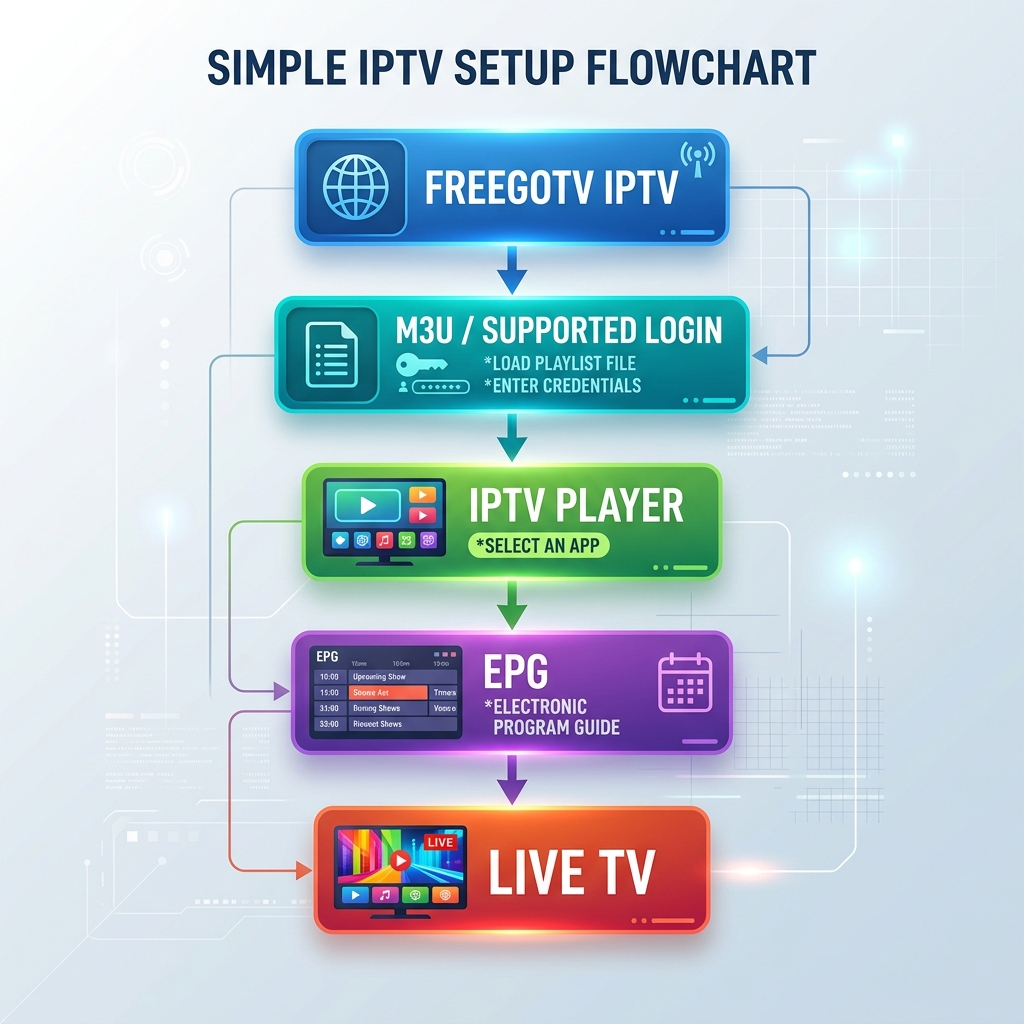 IPTV EPG Wrong Time Fix
IPTV EPG Not Working on Smart TV
Samsung Smart TVs (Tizen OS) and LG Smart TVs (webOS) run lightweight native operating systems with limited background memory allocation.
- Fix: Use lightweight, TV-optimized applications such as SmartOne IPTV or IBO Player. Avoid keeping your TV on standby for weeks without a reboot; restart the TV by holding the power button for 5 seconds until the brand logo reappears. Explore top recommendations in our Smart TV IPTV player guide.
IPTV EPG Not Working on Firestick
Amazon Fire TV Sticks can experience low storage space, which prevents large XMLTV files from downloading completely.
- Fix: Check storage space under Settings > My Fire TV > About > Storage. Ensure you have at least 1 GB of free space. Clear cache for streaming apps regularly. For step-by-step app management instructions, see our comprehensive Firestick setup guide.
IPTV EPG Not Working on Android TV
Android TV and Google TV devices (Sony, TCL, Nvidia Shield, Chromecast) offer robust background processing but may restrict background data for power-saving reasons.
- Fix: Go to Settings > Apps > Special App Access > Battery Optimization and ensure your IPTV player is set to "Don't Optimize" so background EPG updates are not killed.
IPTV EPG Not Working on Mobile Devices
Mobile apps on iOS and Android can restrict background downloads when connected to cellular data.
- Fix: Ensure "Allow Background Data Usage" is enabled for your IPTV app in your smartphone settings.
What Is an IPTV EPG URL?
An IPTV EPG URL is a direct web link pointing to an XML or XMLTV database file containing structured television schedules.
Manual EPG URLs vs. Automated Xtream API
- Automated Login (Xtream Codes API): When logging in with a Server URL, Username, and Password, modern IPTV players automatically retrieve the linked EPG source URL behind the scenes. You do not need to enter a separate EPG URL.
- Manual M3U Login: If you import a raw M3U playlist file without embedded guide tags, your player may request a manual EPG source URL provided by your service.
Important Notice: Never enter unverified or public EPG URLs from random internet forums, as outdated links will fail to map correctly to your provider's channel tags. Always use the authorized configuration details provided by your subscription service.
How to Troubleshoot EPG Issues With FreeGoTV
If you are a FreeGoTV subscriber, troubleshooting program guide issues is straightforward.
FreeGoTV supports automated EPG delivery across all major Smart TV operating systems, Android TV, Firestick, and mobile devices.
Official FreeGoTV EPG Troubleshooting Checklist
- Use Xtream Codes Login: We recommend logging into your player using Xtream Codes API credentials (Server URL, Username, Password) provided in your official welcome email. This automatically links your channel categories to our updated EPG database.
- Execute Manual Sync: If guide data appears missing after setup, open your player settings and click Refresh EPG.
- Check Subscription Status: Verify that your account is active by reviewing your subscription details on our pricing page.
- Access Support: If guide data remains blank after verifying your local setup, contact our customer support team for server status confirmation.
For general setup instructions across all compatible devices, review our detailed installation guide and supported devices overview.
How to Tell Where the EPG Problem Is Coming From
Use this simple diagnostic decision tree to determine whether your guide problem stems from local device settings, player software, or server data feeds:
- IF live video channels play + EPG fails: Focus on EPG source URL, time zone alignment, background refresh settings, or local app cache.
- IF EPG and channels both fail: Check internet connectivity, router status, account subscription state, or playlist server URL.
- IF EPG works on mobile but fails on Smart TV: Focus on TV RAM allocation, app compatibility, or clearing Smart TV app cache.
- IF only select channels miss guide data: The channel stream tag is unindexed or missing from the upstream XML feed.
- IF program times are offset: Adjust local device date/time to automatic and set player EPG Time Shift.