IPTV Audio Delay in 2026: Why Sound and Video Get Out of Sync and How to Fix It
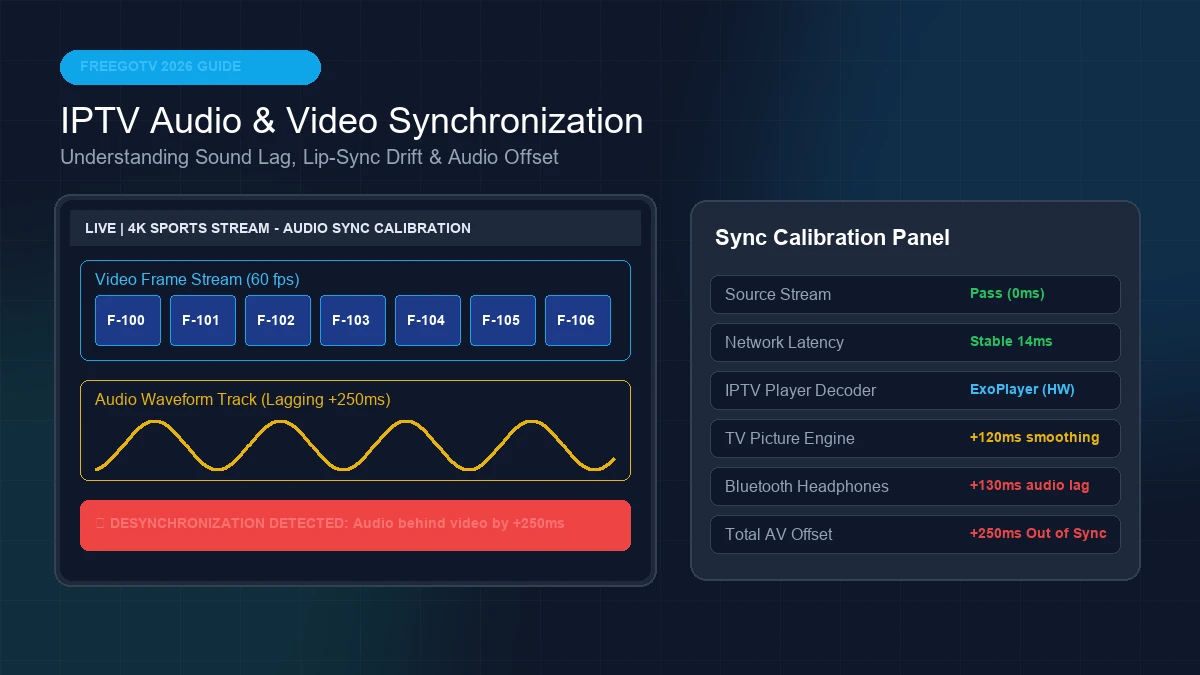
When you stream live television, few technical glitches are as maddening as audio-video desynchronization. You are watching a high-stakes football match, an intense movie dialog, or a breaking news broadcast, but the voice arrives half a second before an actor's mouth moves—or sound trails frustratingly behind the physical action on screen.
Unlike issues like IPTV Sound But No Picture (where video output is completely missing) or 4K IPTV Buffering (where the stream freezes to reload frames), audio delay is a clock and timing misalignment issue. Both the audio stream and the video stream continue playing without stopping, but their temporal playback clocks are out of sync.
In 2026, as IPTV streams deliver higher bitrates, 4K resolution, HDR color depth, and multi-channel surround sound, the processing demand on streaming sticks and Smart TVs has dramatically increased. A tiny mismatch in hardware decoding, television picture processing, or wireless audio latency can quickly throw sound and video out of alignment.
This guide provides a comprehensive technical breakdown of why IPTV sound and video get out of sync, how to diagnose the exact bottleneck in your home setup, and step-by-step instructions to eliminate lip-sync lag on Firestick, Smart TVs, Android TV, soundbars, and popular IPTV player applications.
1. The Science of IPTV Audio & Video Synchronization
To fix sound delay, it helps to understand how modern digital media streams maintain synchronization.
When an IPTV provider broadcasts a channel, video frames and audio samples are packed into a single container format known as an MPEG Transport Stream (MPEG-TS). To keep thousands of frame images aligned with millions of audio samples, the encoder embeds precise synchronization markers inside the data stream:
- PTS (Presentation Time Stamp): Tells the media decoder exactly what microsecond a video frame or audio packet should be displayed on screen or output through speakers.
- DTS (Decode Time Stamp): Instructs the hardware processor when to decode compressed data packets before presentation.
- PCR (Program Clock Reference): Acts as the master clock that synchronizes the streaming player's internal clock with the broadcaster's encoder.
+------------------------------------------------------------------------+
|                          MPEG Transport Stream                         |
|  [ Video Packet + PTS: 00:01.200 ] ---> Video Decoder ---> Display    |
|  [ Audio Packet + PTS: 00:01.200 ] ---> Audio Decoder ---> Speakers   |
+------------------------------------------------------------------------+
Under ideal conditions, your IPTV player reads these timestamps and renders video frames and audio packets simultaneously. However, if any device in your playback chain delays video rendering (for example, through heavy image processing) or holds audio packets in a memory buffer too long, lip-sync offset occurs.
Static Delay vs. Progressive Audio Drift
Before applying fixes, identify which type of desync you are experiencing:
- Static Audio Delay (Fixed Offset): The sound leads or lags by a constant interval (e.g., exactly +200ms) from the moment you turn on the channel. This is usually caused by TV picture processing, soundbar DSP latency, or static player decoder settings.
- Progressive Audio Drift (Cumulative Lag): The stream starts perfectly in sync, but over 30 to 60 minutes of viewing, the audio gradually falls further and further behind the video. This is typically caused by hardware clock drift, network packet jitter, or memory buffer overflow on low-RAM streaming devices.
2. Diagnostic Signal Chain: Pinpointing Where the Lag Happens
Audio desynchronization can originate at any point between the broadcaster's server and your living room soundbar. Inspecting your playback chain step-by-step prevents unnecessary troubleshooting.
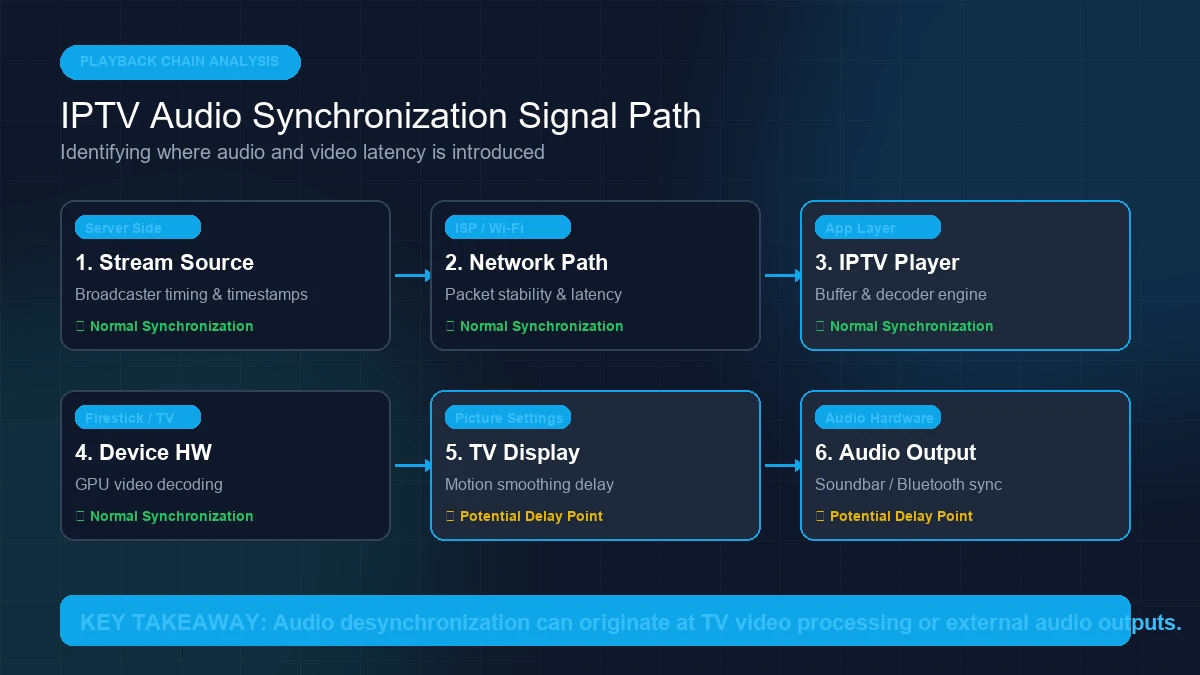 IPTV streaming chain showing possible audio synchronization points
Step-by-Step Diagnostic Checklist
Use this diagnostic flow to isolate the culprit in under two minutes:
- Test Built-in TV Speakers: Disconnect external soundbars, AV receivers, and Bluetooth headphones. Does the audio sync correctly when sound comes directly from your television speakers?
- If YES: The lag is introduced by your external audio hardware or wireless codec.
- If NO: The delay is happening inside the IPTV player, streaming stick, or TV video engine.
- Test Different Channels & VOD Content: Switch to three different live channels and play a Video on Demand (VOD) movie.
- If lag occurs on ALL content: The issue is local to your device, player settings, or TV.
- If lag occurs on ONLY ONE channel: The broadcaster's encoder for that specific source feed has misaligned PTS timestamps.
- Test Another IPTV Application: Open a secondary player app (such as switching from TiviMate to IPTV Smarters or VLC).
- If second app works cleanly: Your primary player's decoder or buffer configuration needs adjustment.
Audio Delay Symptoms vs. Primary Root Causes
| Observed Symptom | Primary Root Cause | Fast Solution |
|---|---|---|
| Sound arrives before lips move (Positive Delay) | TV Motion Smoothing delays video frame output | Enable TV Game Mode / Turn off TruMotion |
| Sound arrives after lips move (Negative Delay) | Soundbar DSP or Bluetooth wireless processing lag | Calibrate IPTV player audio offset (-150ms) |
| Audio drift gets worse after 1 hour | Stream buffer clock skew / Device RAM throttling | Change player decoder to HW+ / Restart stick |
| Delay occurs only on 4K HDR channels | Hardware GPU overloaded by high-bitrate video | Lower stream buffer size / Upgrade device |
| Delay occurs only on Bluetooth headphones | Bluetooth SBC/AAC codec transmission latency | Switch to aptX Low Latency or wired connection |
Premium FreeGoTV Streaming — Save 61% Today
Unlock crystal-clear HD/4K streaming, advanced EPG, and zero buffering. Get our Ultimate 12-month plan for just $69.99.
- Premium Antifreeze
- Instant Setup
3. The 6 Primary Causes of IPTV Sound Desynchronization in 2026
Modern television setups are sophisticated, but complex processing loops introduce latency. Here are the six most common technical causes of IPTV sound lag:
1. Heavy TV Picture Processing & Motion Smoothing
Modern 4K and 8K Smart TVs utilize powerful AI image processors to upscale HD content, reduce noise, and interpolate frames (e.g., LG TruMotion, Samsung Auto Motion Plus, Sony Motionflow).
While these picture enhancements smooth out motion, they add up to 120ms–200ms of video processing latency. Meanwhile, the TV outputs raw audio instantly. Because the video processor takes longer to render each frame than the audio chip takes to decode sound, the audio arrives noticeably ahead of the picture.
2. IPTV Player Decoder Engine Mismatch
IPTV applications rely on software decoders to process video and audio streams. The three main decoding frameworks are:
- Hardware (HW) Decoding: Uses dedicated video chips on your Firestick or Smart TV for ultra-fast playback.
- Hardware+ (HW+) Decoding: Combines native GPU acceleration with custom player framework rules.
- Software (SW) Decoding: Forces the device CPU to calculate video frames manually.
If your player uses an incompatible decoder engine for a specific stream format (such as HEVC/H.265 or AAC-LC audio), the CPU can struggle to decode video frames in time, causing audio to race ahead of video rendering.
3. External Audio Hardware DSP Processing (HDMI eARC & Optical)
When sound is routed from your streaming device to a Smart TV, and then passed through an HDMI eARC port or Optical (Toslink) cable to a soundbar or AV Receiver, digital signals undergo multiple format conversions.
Digital Signal Processors (DSPs) inside soundbars add processing delay while decoding multi-channel surround formats like Dolby Digital 5.1, DTS, or Dolby Atmos. If the TV does not automatically communicate this latency back to the streaming player via HDMI CEC/eARC handshake protocols, lip-sync misalignment occurs.
4. Bluetooth Wireless Audio Latency
Using wireless Bluetooth headphones or portable Bluetooth speakers is a very common cause of audio lag when watching live TV.
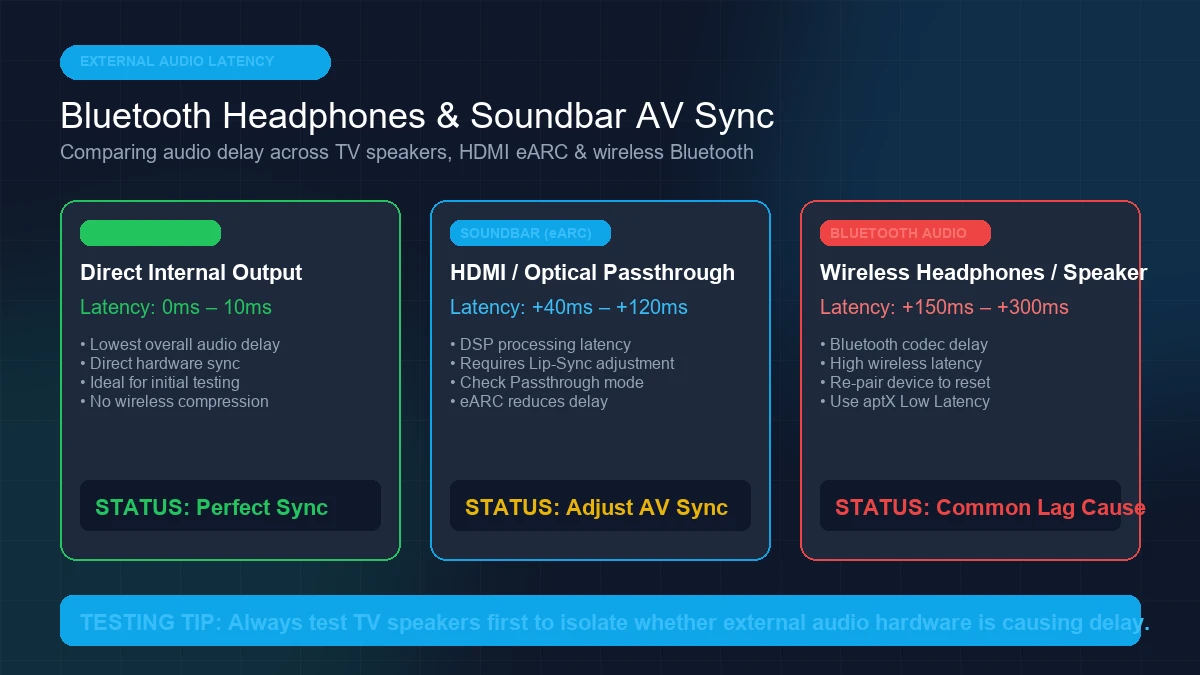 Smart TV soundbar and Bluetooth headphones with IPTV audio delay
Standard Bluetooth audio transmission relies on codecs like SBC or AAC, which introduce 150ms to 300ms of latency due to wireless buffer encoding. While video apps like YouTube automatically compensate for Bluetooth delay, live IPTV stream players often transmit unbuffered raw audio packets directly to the Bluetooth radio, resulting in heavy lip-sync offset.
5. Audio Format Bitstream vs. PCM Downmixing
IPTV streams carry a variety of audio formats, ranging from simple 2-channel Stereo PCM to Dolby Digital Plus (E-AC3) and AAC.
If your IPTV player is configured to output raw Bitstream (Passthrough), but your TV or soundbar is forced to downmix that bitstream into 2-channel PCM on the fly, the real-time transcoding process introduces noticeable audio offset.
6. Packet Jitter & Buffer Clock Skew
Over congested Wi-Fi networks, data packets arrive out of order (packet jitter). When an IPTV player attempts to reassemble corrupted transport stream packets, it may drop damaged video frames while continuing to process uninterrupted audio streams. Over time, this causes the audio and video clocks to drift apart.
4. Step-by-Step Fixes for Every Device & IPTV Player
Now that you understand the root causes, follow these targeted step-by-step solutions to calibrate your audio and achieve perfect lip-sync synchronization.
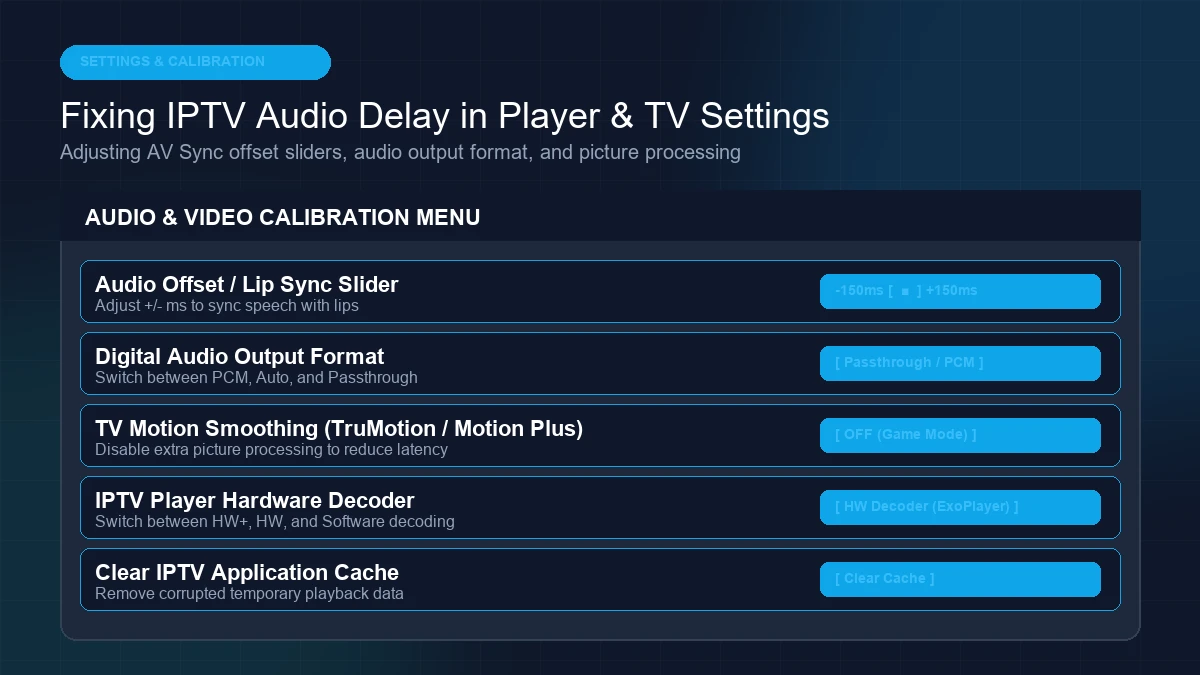 Troubleshooting IPTV audio delay and lip-sync settings
Fix 1: Calibrate Audio Offset in Your IPTV Player Application
The quickest and most reliable fix for static audio delay is to adjust the built-in Audio Offset (Lip-Sync Calibration) slider present in premium IPTV applications.
How to Adjust Audio Delay in TiviMate:
- Open any live channel in TiviMate.
- Press the Select / OK button on your remote to bring up the player controls overlay.
- Select the Settings (Gear icon) in the bottom right corner.
- Navigate to Audio Track -> Audio Offset.
- Adjust the slider:
- Move left (Negative offset, e.g., -150ms) if sound is playing after mouth movements.
- Move right (Positive offset, e.g., +150ms) if sound is playing before mouth movements.
- Select Apply to All Channels so the calibration is saved globally.
How to Adjust Audio Delay in IPTV Smarters Pro:
- Navigate to Settings -> Player Settings.
- Switch Audio Decoder from Native to VLC Player or ExoPlayer.
- While playing video, tap the Audio Icon in the top menu and select Audio Sync Adjustment.
If you are evaluating different apps for your device, consult our detailed breakdown of the Best IPTV Players for 2026.
Fix 2: Enable Game Mode & Turn Off TV Motion Smoothing
Because television image enhancement features cause significant video rendering delays, disabling them instantly restores lip-sync alignment:
- LG Smart TVs (webOS): Go to Settings -> Picture -> Aspect Ratio & Picture Modes -> TruMotion -> Change to OFF. Alternatively, enable Game Optimizer mode while watching IPTV.
- Samsung Smart TVs (Tizen): Go to Settings -> All Settings -> Picture -> Expert Settings -> Auto Motion Plus (Picture Clarity) -> Turn OFF. Set Game Mode to ON for your HDMI input.
- Sony & Android TVs: Go to Settings -> Display & Sound -> Picture -> Motion -> Set Motionflow and CineMotion to OFF.
Fix 3: Adjust System Audio Delay on Firestick & Streaming Devices
If you stream using an Amazon Fire TV Stick, Google TV, or Apple TV, you can adjust system-level audio synchronization across all installed applications.
Amazon Firestick AV Sync Calibration:
- From the Firestick Home Screen, open Settings (Gear icon).
- Select Display & Sounds -> Audio.
- Scroll down and click AV Sync Tuning.
- A bouncing ball with an audible tone will appear on screen. Use your remote to adjust the slider until the tone matches the exact moment the ball hits the target pad.
- Save settings and return to your IPTV application.
For complete hardware configuration guides, see our official manual on How to Set Up IPTV on Firestick in 2026.
Fix 4: Configure Digital Audio Output (Passthrough vs. PCM)
If your streaming device is connected to a TV and soundbar:
- Open your TV's Sound Settings.
- Locate Digital Audio Output Format (or Audio Out).
- Change the setting from Auto to PCM (if experiencing bitstream handshake delays) or Passthrough / Bitstream (if using a high-end Dolby Atmos soundbar with eARC support).
- Enable HDMI eARC Mode if your TV and soundbar support enhanced audio return channels.
Fix 5: Change the Player Hardware Decoder Engine
If audio drift occurs progressively over time, changing the player's internal video rendering framework prevents clock skew:
- Open your IPTV application settings.
- Locate Video Decoder or Playback Engine.
- Toggle between Hardware (HW), Hardware+ (HW+), and Software (SW) decoders.
- For Android TV and Firestick devices, Hardware+ (ExoPlayer) typically delivers the most stable synchronization for 60fps live sports streams.
Fix 6: Clear Application Cache & Optimizing Network Stability
Corrupted temporary cache files can mess up stream clock references:
- Go to your streaming device Settings -> Applications -> Manage Installed Applications.
- Select your IPTV Player app.
- Click Clear Cache (do not click Clear Data unless you want to re-enter login details).
- Restart your streaming device and Wi-Fi router.
If network congestion is causing packet dropouts, review our comprehensive master checklist: IPTV Not Working? 20 Things to Check.
5. Device Quick Reference & Troubleshooting Matrix
Use this quick-reference matrix to find the optimal audio configuration for your specific hardware platform:
| Device Platform | Recommended IPTV Player | Optimal Video Decoder | Audio Output Format Setting | Key Audio Delay Fix |
|---|---|---|---|---|
| Amazon Firestick 4K | TiviMate / Sparkle TV | Hardware (HW) | Direct PCM / Auto | Run Firestick AV Sync Tuning |
| Samsung Smart TV | IPTV Smarters / Nanomid | Native HW | Optical / PCM | Turn off Auto Motion Plus |
| LG webOS TV | Smart IPTV / IPTV Smarters | Native System | HDMI eARC Passthrough | Disable TruMotion / Enable Game Optimizer |
| Android TV / Shield | TiviMate / OTT Navigator | Hardware+ (ExoPlayer) | Passthrough | Adjust TiviMate Audio Offset (-100ms) |
| Apple TV 4K | iPlayTV / GSE Smart IPTV | AVPlayer (HW) | Auto / Uncompressed PCM | Match Frame Rate -> ON |
Understanding Infrastructure Quality
It is worth noting that low-quality IPTV resellers often use poorly configured transcode servers that strip PTS timecodes to save bandwidth. No matter how much you adjust local device settings, a server stream with baked-in audio delay will never stay in sync.
Using a high-performance, premium service like FreeGoTV ensures that live broadcast feeds are encoded with master clock precision, uncompressed multi-channel audio timestamps, and dedicated high-bandwidth server routing.
Still Experiencing Audio Sync Problems?
If local device adjustments didn't fix the delay, our team can inspect source stream synchronization and assist with your setup.
- Priority Server Inspection
- Step-by-Step Setup Help
Frequently Asked Questions
Final Thoughts: Achieving Flawless Audio Sync in 2026
Audio-video desynchronization can instantly ruin an immersive movie or live sporting event, but in almost every case, the issue can be completely resolved with a few targeted adjustments.
By systematic isolation—disabling heavy TV motion processing, setting digital audio formats to PCM or Passthrough, calibrating player audio offset sliders, and using hardware acceleration—you can permanently eliminate lip-sync drift on your devices.
Pairing your hardware calibration with a ultra-stable, high-bitrate streaming service like FreeGoTV provides the ultimate viewing experience. Explore our flexible subscription options on our Pricing page today, or reach out to our team via our Contact Page for personalized setup assistance!